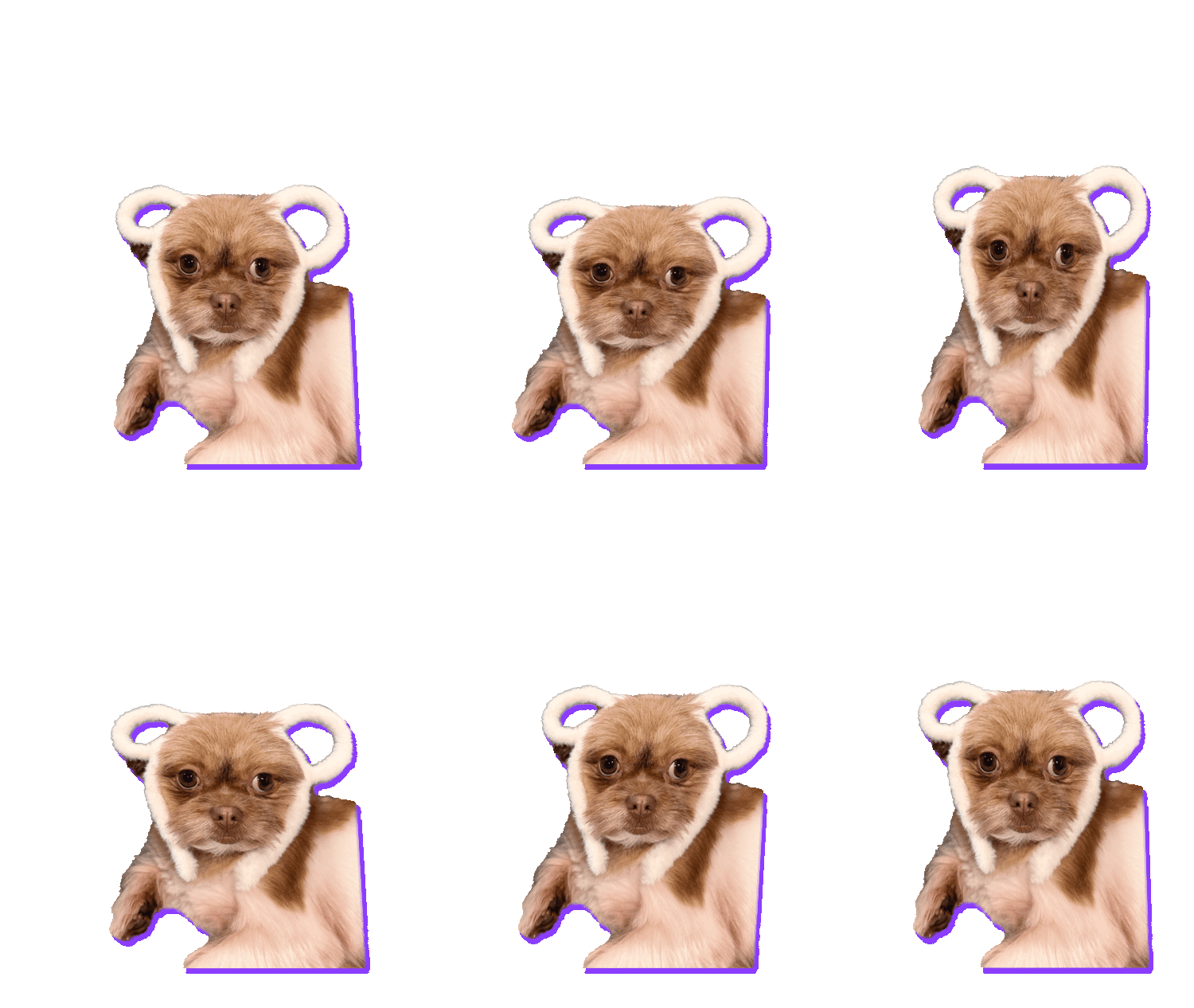
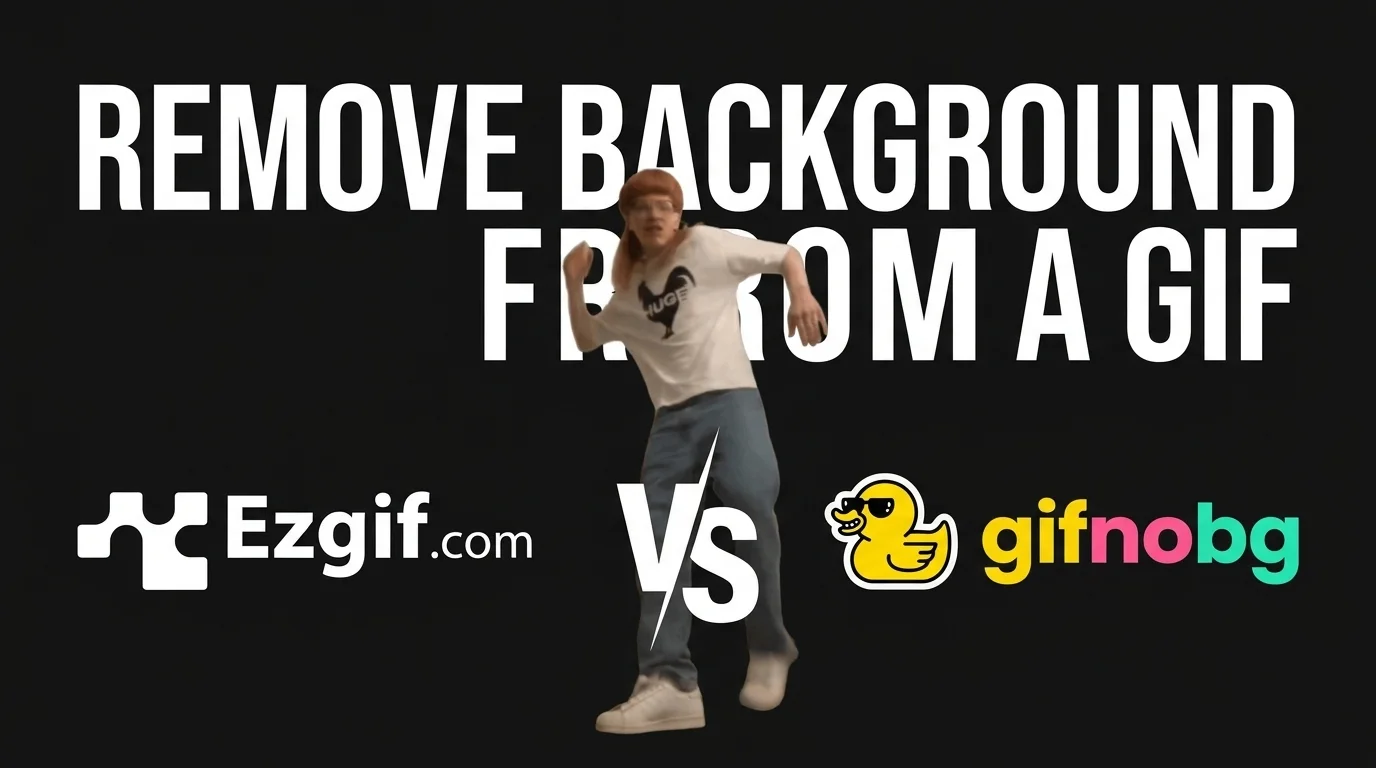
Removing the background from a still picture is easy these days. Removing it from an animated GIF, where the person moves and the background moves too, is a different story. So we tried it: the same GIF, two free tools, Ezgif and GifNoBg.
▶ Watch the side-by-side test on YouTube, then read on for why the two tools behave so differently.
Two very different ways to remove a background
Ezgif: pick a colour, make it see-through
Ezgif is a brilliant collection of GIF tools: resize, crop, speed up, optimise, add text and much more. Its background remover works by colour. You pick the background colour (white, black or any other), and a fuzz setting decides how close a shade has to be to count as background. Every matching pixel, in every frame, becomes transparent. It also has options to clean up the edges and to handle each frame on its own.
That’s fast and precise when the background really is one flat colour, like a logo on white or a character on a plain screen.
GifNoBg: AI finds the subject
GifNoBg doesn’t look for a colour at all. An AI looks at each frame and finds the subject, the person, pet or object, and removes everything else, whatever colour it is. If it misses a bit, you tap it once with Add or Remove and the fix follows through the whole animation. And it all happens in your browser: the GIF is never uploaded.
help centreRemove the background from an animated GIFAlready have a GIF? Open it in GifNoBg just like a video to remove its background and get a transparent animated GIF, WebP or APNG.read the guide →Why a busy background changes everything
In the GIF from our test, the background isn’t one colour. It moves, it has lots of shades, and some of those shades also appear on the person. That’s the worst case for a colour-based tool:
- Low fuzz leaves most of the background behind, because it isn’t one exact colour.
- High fuzz starts eating into the subject wherever its colours are close to the background: hair, clothes, shadows.
- Because the background changes from frame to frame, a setting that works on one frame can fail on the next.
An AI cut-out doesn’t care what colour the background is. It cares about what is in the picture, so a moving, multicoloured background is handled the same way as a plain one.
So which one should you use?
- Use Ezgif when the background is one flat colour (white, black, a solid screen), or when you need its other GIF tools: optimising, resizing, cutting frames.
- Use GifNoBg when the background is a real scene: a room, a street, anything that moves or has many colours. Or when you want a finished sticker, with an outline, animated text or an effect, saved in the right size for WhatsApp, Discord or GIPHY.
Honestly, they work great together. Plenty of people cut out the subject in GifNoBg, then use Ezgif to fine-tune the finished GIF.
Tips for the cleanest GIF cut-out
- Start from the video if you have it. A GIF has only 256 colours, so edges are rougher. The original video gives the AI more to work with.
- Fix once, not on every frame. In GifNoBg, a single Add or Remove tap is followed through the whole clip.
- Add an outline. A white outline hides any rough edge and makes the sticker pop on any background.
- Pick where it’s going. Choose GIPHY, WhatsApp or Discord when you save, and the size and format are handled for you.
GifNoBg is free, with no sign-up, no subscription and no watermark. Give it your trickiest GIF.