How to make a transparent animated GIF from a video
Turn any MP4, MOV or WebM video into a transparent animated GIF in about a minute. AI removes the background automatically — free, no sign-up, no watermark.
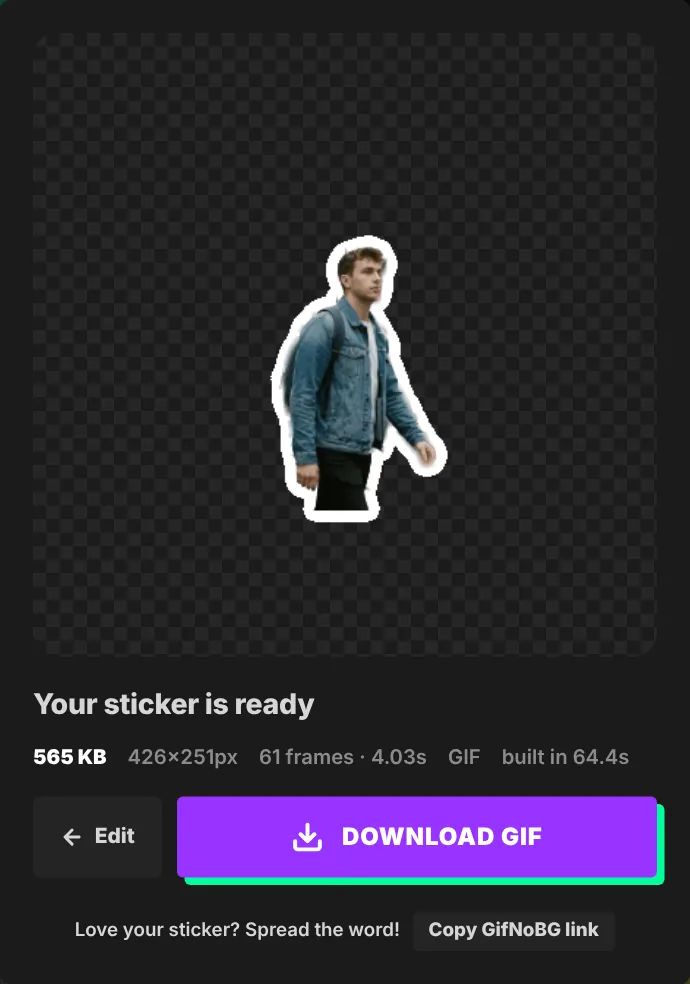
A transparent animated GIF is a GIF where only the person, pet or object moves — everything behind it is see-through, so it sits on top of a chat, a story or a web page like a sticker. Making one used to mean a green screen and hours of masking in video software. With GifNoBg, the background is removed automatically, frame by frame, by an AI that runs right in your browser.

Make your transparent GIF in 4 steps
- Open your video. Go to gifnobg.com and press Choose Video, or drag a file onto the page. MP4, MOV, WebM and animated GIFs all work. Nothing is uploaded — the file is opened on your own device.
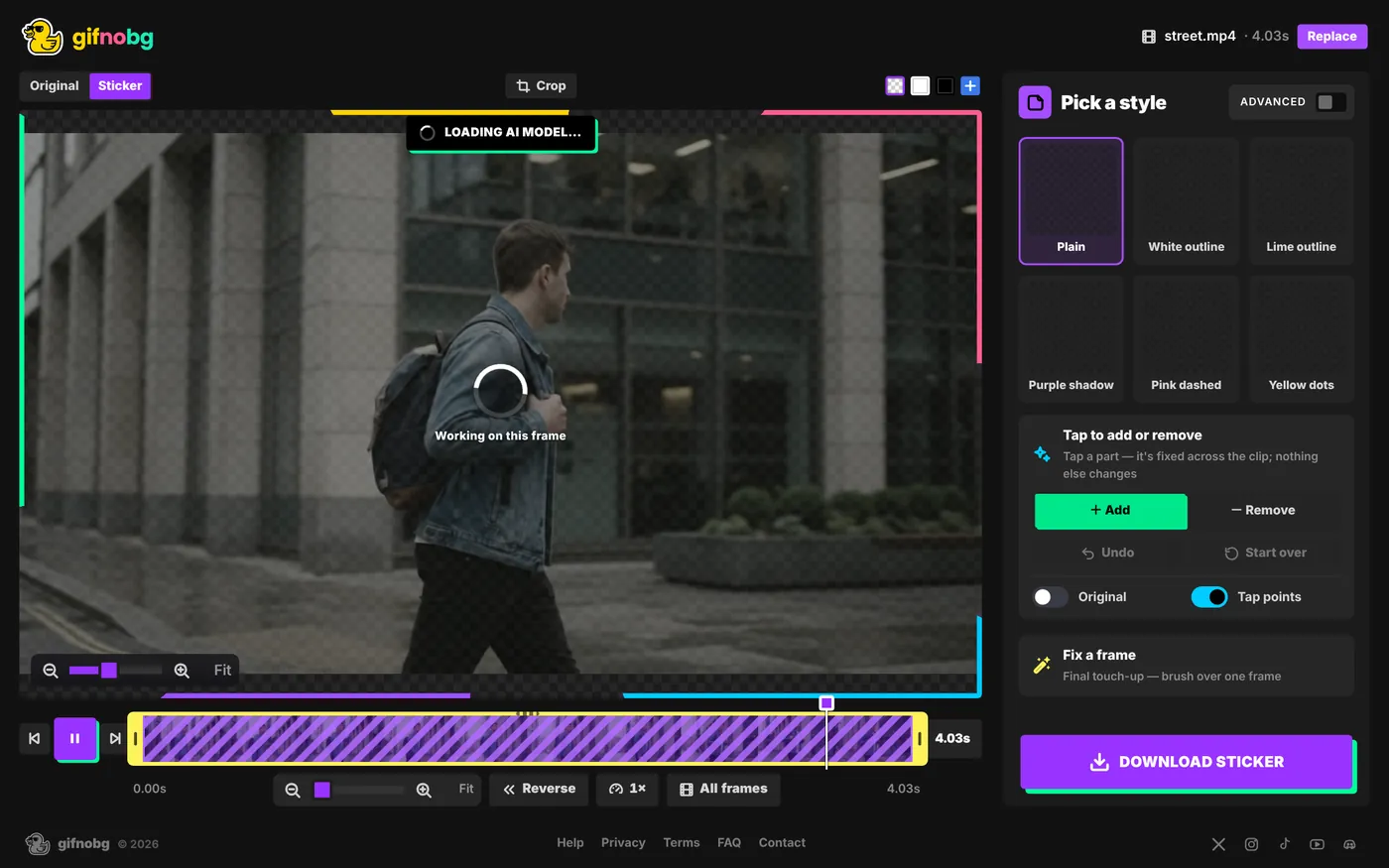
- Let the AI remove the background. GifNoBg finds the subject and cuts it out of every frame. You can watch it work: frames that are still being processed have a purple striped cover on the timeline.
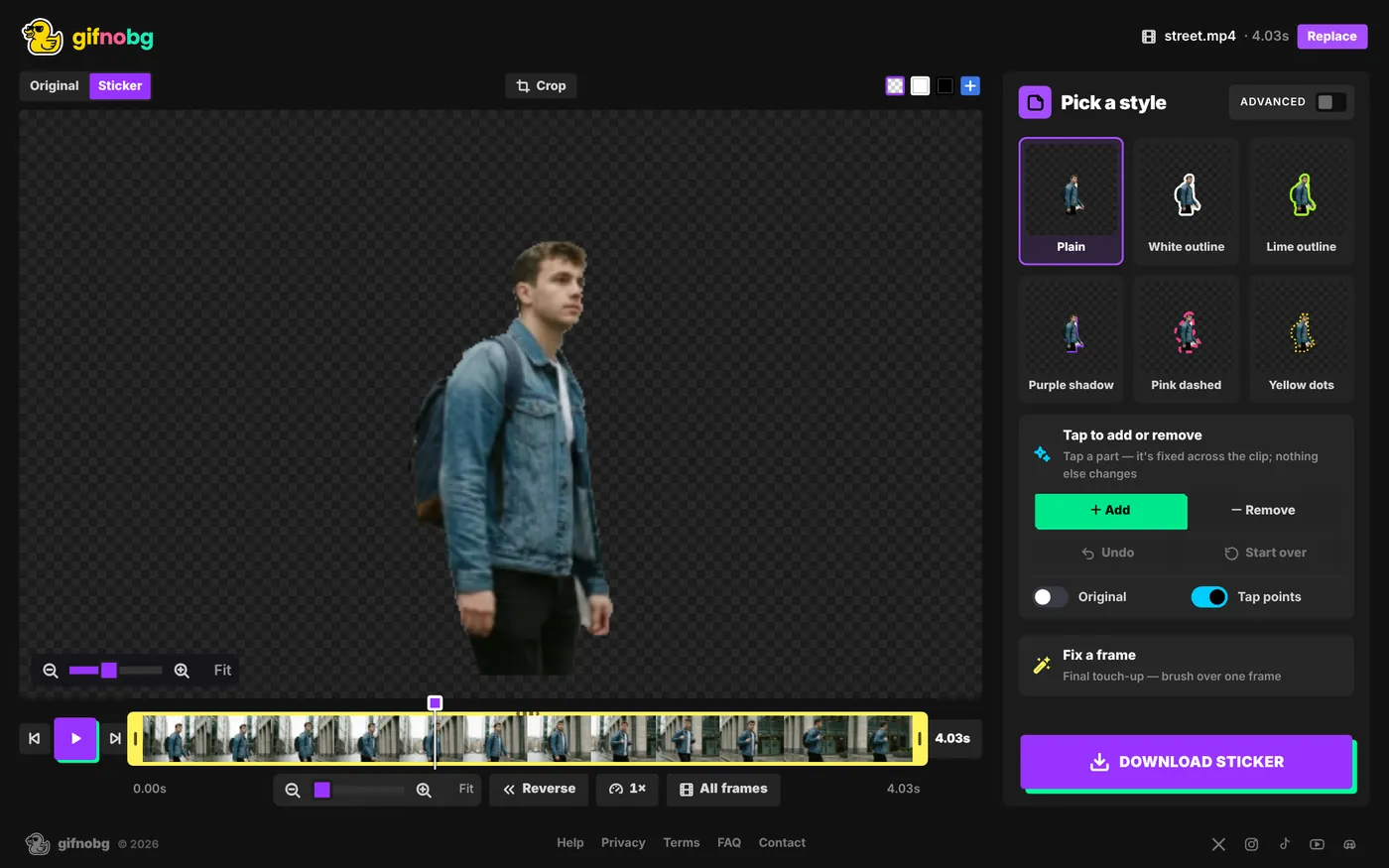
- Check and fix. Switch between Original and Sticker at the top of the preview. If something is missing or extra, choose Add or Remove and tap that part once — the fix follows it through the whole clip. See Tap to add or remove.
- Pick a style and download. Choose Plain or add an outline or shadow, press Download sticker and pick where it's going. Your transparent GIF is saved to your device.

Choose the right part of the video
Stickers work best when they are short — usually 2 to 6 seconds. Drag the yellow handles at each end of the timeline to choose the moment you want; the pill on the right shows the length of your GIF. You can also reverse the clip, change its speed, or crop it. All of this is explained in Trim, crop, speed up or reverse.
Which file should you download?
When you press Download sticker, GifNoBg asks where you'll use it and picks the right format and size for you:
- GIPHY — an animated transparent GIF, trimmed to the subject.
- WhatsApp — an animated WebP sticker, 512×512.
- Discord — an animated APNG sticker, 320×320.
- Just a GIF — for chats, slides, websites and anywhere else.
Not sure? Read GIF, WebP or APNG: which transparent format to choose.
Tips for the cleanest result
- Use the original video, not a GIF, when you can. GIFs only have 256 colours, so edges come out cleaner from a video.
- Good contrast helps. A subject that stands out from the background — a dark jacket against a light wall, say — gives the sharpest cut.
- Keep it short. Fewer frames means a smaller file that loads instantly in chats.
- Add an outline. A white border hides tiny edge pixels and gives the classic sticker look. See outlines, glows and shadows.