Trim, crop, speed up or reverse your clip
Pick the exact moment, crop the frame, change the speed from 0.25× to 3×, play it backwards, skip frames for a smaller file, or make a boomerang.
Trim: pick the moment
The timeline under the preview shows every frame. Drag the yellow handles at the left and right ends to set where your sticker starts and ends; drag the top or bottom bar to move the whole selection. The pill at the end shows how long your GIF will be.

- Play / pause — the big play button, or Space.
- Previous / next frame — the ◀ ▶ buttons, or ← →.
- Zoom the timeline — the slider under it (or Ctrl + scroll) for long clips.
Stickers are best at 2–6 seconds. A sticker can be up to 30 seconds long.
Speed, reverse and frames
Under the timeline:
- Reverse — plays the clip backwards (and exports it that way).
- Speed — from 0.25× (slow motion) to 3×.
- All frames / Every 2nd / 3rd / 4th — skipping frames makes a much smaller file, at the cost of slightly less smooth motion.

Crop
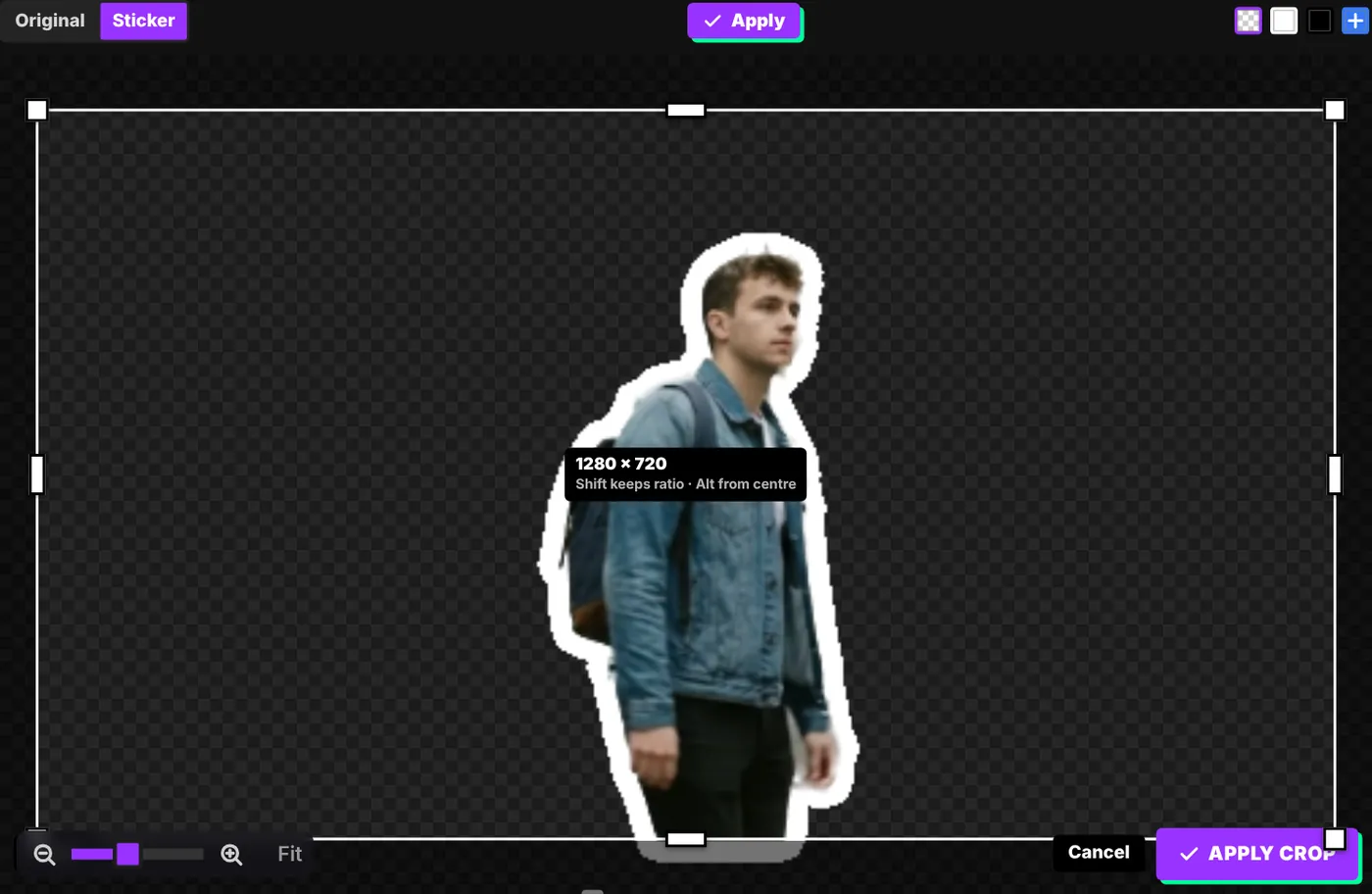
Press Crop above the preview, drag the box or its corners, then Apply crop. Reset goes back to the full frame. To trim away empty space around the subject automatically, use Crop to the subject in the Style settings.
Loops and boomerangs (Advanced)
In Advanced → Export → Custom you'll find Boomerang (forward then back) and Repeat (loop forever, play once, or 3 times), plus exact frame rate and width.