Remove the background from a product video
Cut a product out of its video — a shoe, a mug, a bag — and get a transparent animated GIF, WebP or APNG for your shop, ads or social posts.
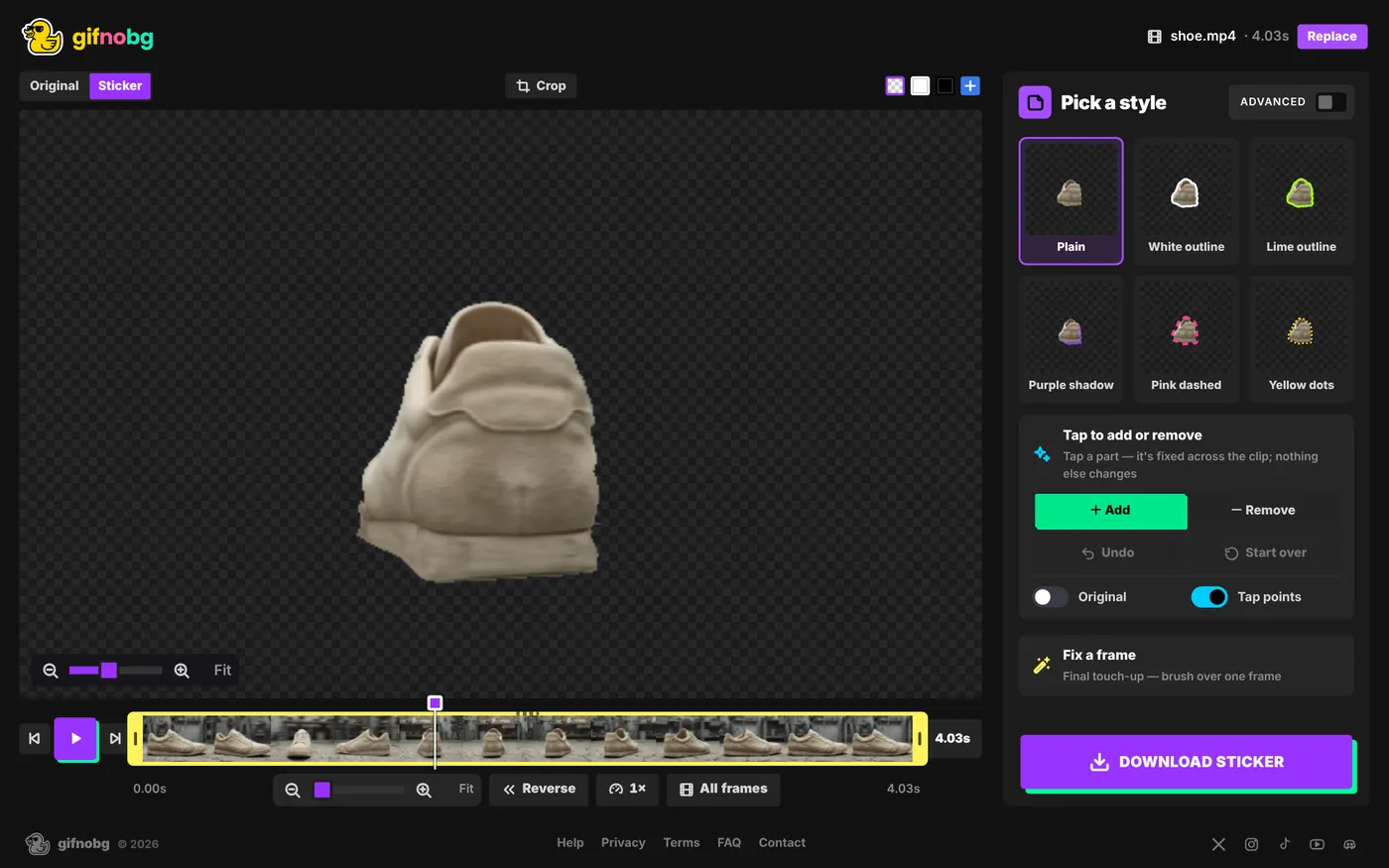
A spinning shoe or a mug being picked up looks great on a product page, a banner or a social post — if the background is gone. GifNoBg removes it automatically, frame by frame, even when the camera moves around the product.
How to do it
- Open your product video at gifnobg.com.
- The AI finds the product and removes the background. If it misses a part — a strap, a lid — choose Add and tap it. If something else is included, choose Remove and tap it.
- Trim to a clean loop and crop so the product fills the frame.
- Pick Plain for a clean look (or add a soft shadow), then download.
Which format for which use
- Website or shop page: WebP — smallest file with soft edges. Choose it in Advanced → Export → Custom.
- Email newsletters: GIF — the only animated format almost every email app shows. Set Best on to the colour of your email background.
- Slides and social posts: GIF works everywhere; High quality gives the sharpest result.
More on this in GIF, WebP or APNG.
Film on a plain table or backdrop, light the product evenly, and move the camera slowly — you'll get the cleanest edges.

Try it with your own videoFree, no sign-up, no watermark — and your video never leaves your device.
Make a sticker