Add animated text to your sticker
Put moving words on your sticker: 30 animated looks like Pop, Fire, Glitch, Neon, Comic and Slime. Drag, turn and resize the text right on the picture.
Add a word or two that moves — "NO WAY!", "LOL", "Monday" — on top of your sticker. Pick one of 30 animated looks and place the text anywhere on the picture. The text moves in step with your clip, so it looks exactly the same in the preview and in the saved sticker.
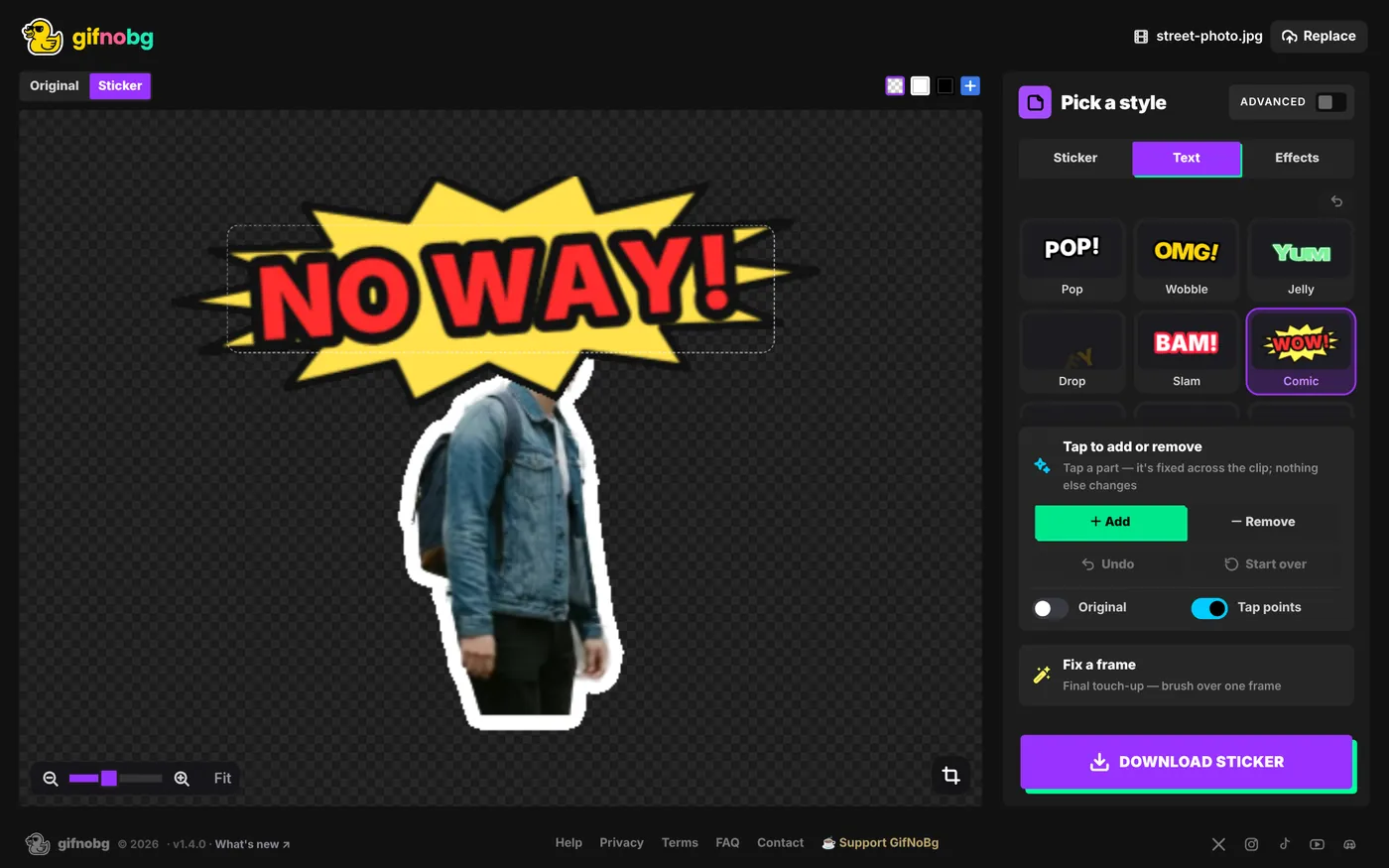
On a computer
- Go to the style step and choose Text at the top of the panel (between Sticker and Effects).
- Press Aa Add text (or just pick a look) and type straight onto the picture. Press Enter or click away when you're done; Esc cancels.
- Pick a look. There are 30, from bouncy (Pop, Wobble, Jelly, Drop, Slam, Comic) and colourful (Wave, Disco, Neon, Fire, Frost, Gold, Chrome, 3D, Retro, Inflatable, Heartbeat) to techy (Glitch, Hacker, Typewriter, 8-bit, Spin, Outline) and crafty (Label, Bubble, Marker, Cut-out, Stamp, Sign, Slime). You can change it while you type.
- Move the text on the picture: drag it to move, drag the dot above it to turn it, drag the corner to resize it, and press ✕ to delete it. Click the text again (or double-click it) to change the words.
On a phone
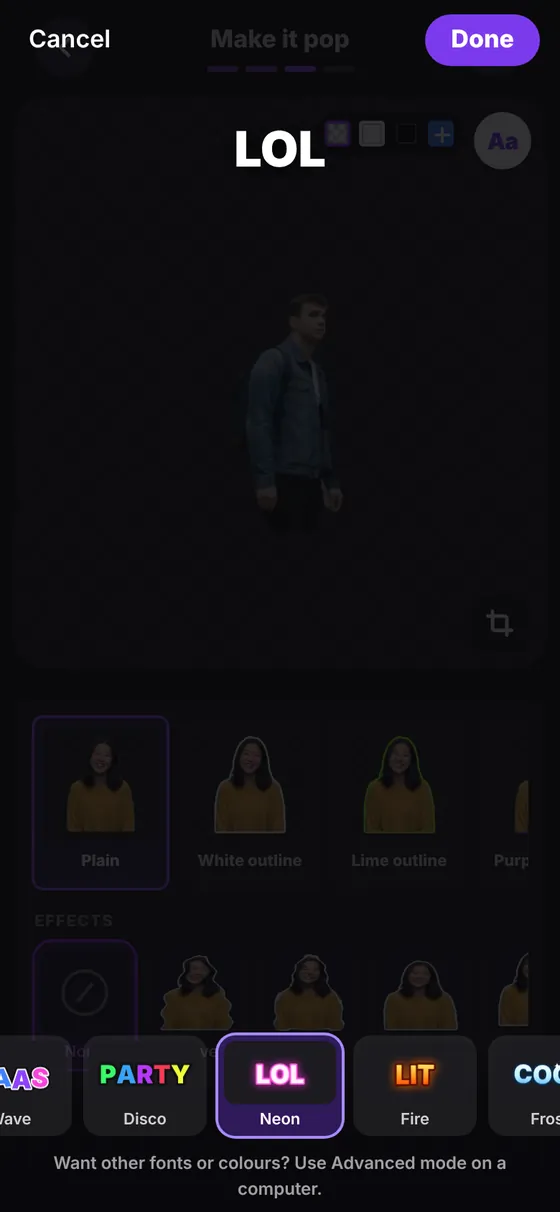
- On Make it pop, tap the purple Aa in the top-right corner of the picture. A blinking cursor appears; the keyboard stays closed so you can look first.
- Pick a look from the row at the bottom: a faded Aa shows it straight away.
- Tap anywhere on the darkened picture to bring up the keyboard and type. Your words appear big, in the look you picked. You can switch looks while you type.
- Press the keyboard's tick (or Done) to place the text on your sticker. Cancel undoes it.
- To change it later, tap the text on the sticker: switch the look and press Done, or tap the dark area to edit the words. Drag the text with one finger; pinch to resize and twist to turn it. Tap ✕ to delete it.
More control (Advanced)
Switch on Advanced on a computer for more:
- Up to 3 texts, each with its own look. Use ↑ ↓ to choose which is on top.
- Font, fill and outline. Six fonts, any colour, or a gradient, rainbow or chrome fill.
- Shadow and 3D depth.
- Motion. The animation speed (it always repeats a whole number of times in the clip, so the loop never jumps), how strong it is, and which way it runs.
- When it shows. Shows from and Until choose the part of the clip where the text appears. Moving them jumps the preview to that frame.
- Size, rotation, opacity and quick placement at the top, middle or bottom.
Good to know
- Always in step. The animation repeats a whole number of times in your clip, so the loop never jumps. Pausing or moving through the frames shows exactly what the saved sticker will show.
- Photos. A photo with text becomes a short 2-second loop so the text can move.
- GIF edges. A GIF pixel is either fully see-through or solid, so glows and shadows are drawn crisp in GIF stickers. WebP and APNG keep them soft.
- Crop to the subject keeps the text inside the sticker.
- Undo. Changed your mind? Press Undo next to Add text (on a phone, the arrow next to Aa).

Try it with your own videoFree, no sign-up, no watermark — and your video never leaves your device.
Make a sticker