Add text, stickers, effects and blur
Add animated text and your own fonts, put pictures or animated stickers on top, blur or pixelate part of the picture, and change colours or add moving effects in GIF Maker.
Text
Open Overlay, then Text, and tap Add text, then pick a look: Pop, Wobble, Neon, Fire and many more, most of them moving. Drag the text on the picture to move it, use the corner to resize it and the top dot to turn it. Below the looks you can change the font, colours, outline, motion and when the text shows.
+ Upload font at the end of the font list uses a font file from your device (TTF, OTF, WOFF or WOFF2). It's added for this visit; it ends up in your saved file like any other text.
Animated stickers
Open Overlay, then Stickers: over a hundred animated emoji (faces, hearts, hands, party, animals, food and more). Search or pick a group, then tap one to put it on your GIF. Hover over one on a computer to see it move. They come with GifNoBg, so nothing is fetched from anywhere else. The emoji are Google’s Noto animated emoji (CC BY 4.0).
Your own pictures on top
Open Overlay, then Upload, and pick (or drop) a PNG, JPG, WebP or GIF. Animated GIFs, WebP and APNG keep moving and repeat for as long as they show, and see-through parts stay see-through.
- Drag it on the picture to move it. The corner resizes it and the top dot turns it.
- Opacity fades it; Shows from and Until choose when it appears and disappears.
- Everything you’ve added is listed under On your GIF in Upload: tap one to pick it.
- Replace swaps in another picture in the same place; Delete removes it.
Blur or pixelate an area
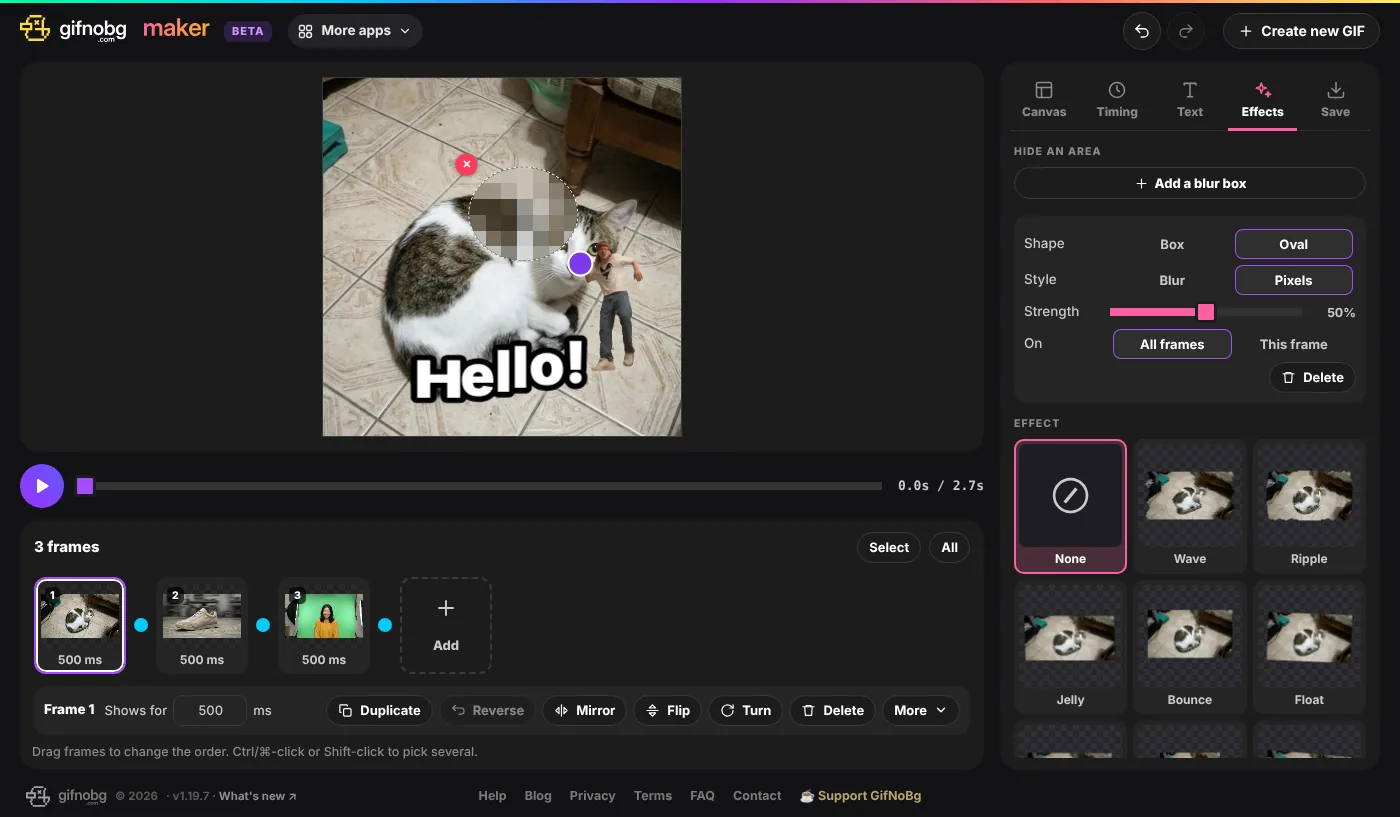
- Open Effects and tap Add a blur box.
- Drag it over what you want to hide and use the corner to resize it.
- Pick Box or Oval, Blur or Pixels, and the Strength.
- On: All frames, or This frame (or the picked frames) only.
Tap anywhere else to see the picture exactly as it will be saved. The box stays where you put it; it doesn't follow things that move.
Effects, colours and outlines
- Effect — moving effects like Wave, Jelly, Glitch, VHS or Sparkles. Every tile shows a preview with your own frame. Strength and Speed appear once you pick one.
- Colours — Brightness, Contrast and Saturation, plus Hue, Blur, Opacity, Black & white and Invert under More. They change the picked frames; Use for every frame copies them to all, and Reset undoes them.
- Sticker outline — the same outlines as GifNoBg (white, neon, pixel and more). They go around see-through edges, so they show best on stickers or with a See-through background and Fit.