Put your sticker on a background
Swap the background of a GIF or video: a colour, a gradient, your own photo, video or GIF, or the original clip. Save it as a GIF or an MP4 video. Free, no watermark.
A sticker doesn't have to be see-through. Put the cut-out on a bright colour, a gradient, your own photo, a video or another GIF — or keep the original clip behind it and just add a style, an effect or text. The background is saved into the file.
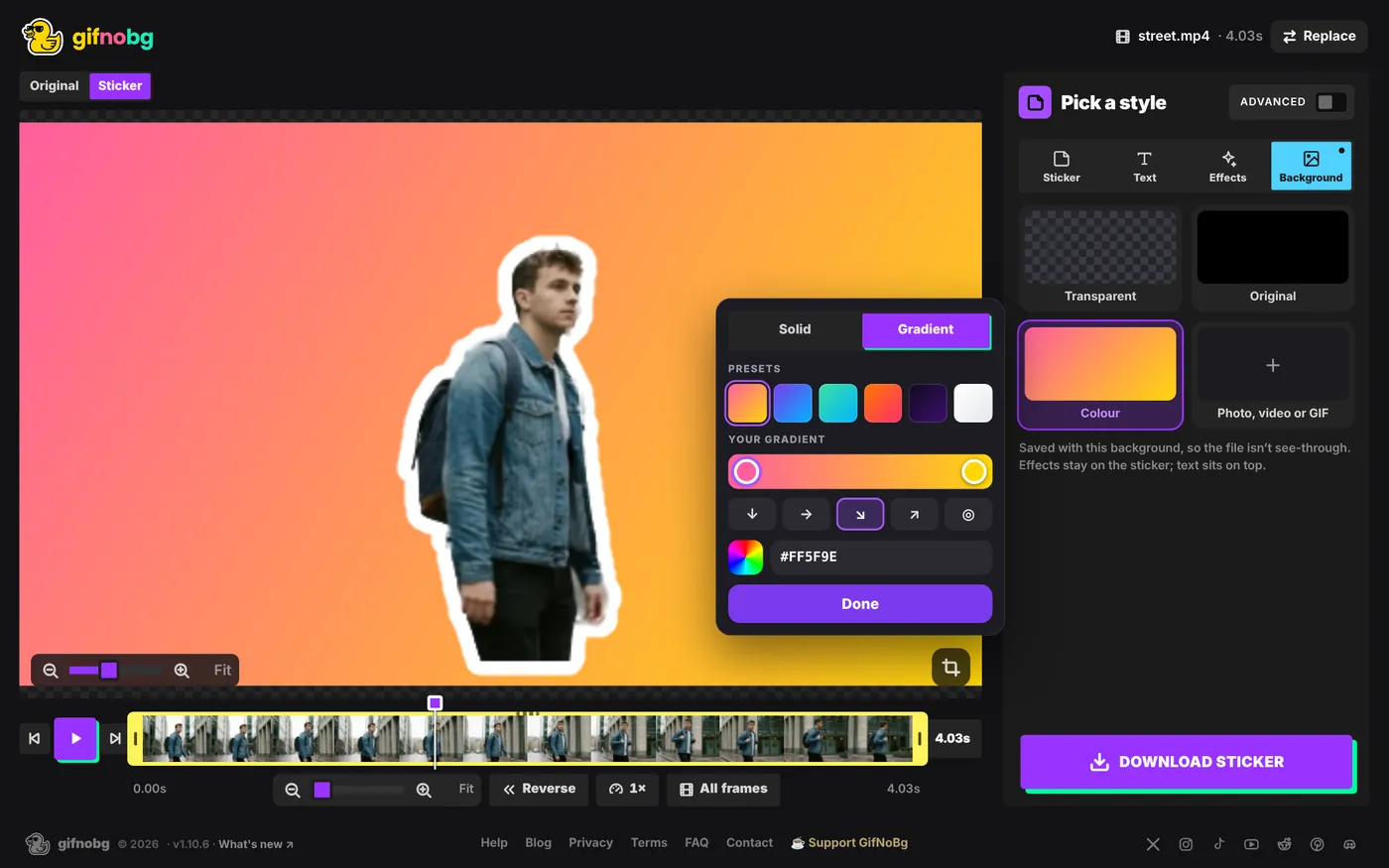
How to pick one
- On a computer: go to the style step and choose Background at the top of the panel (next to Sticker, Text and Effects).
- On a phone: on Make it pop, tap the Background tab under the picture.
- Pick one of the four tiles below.
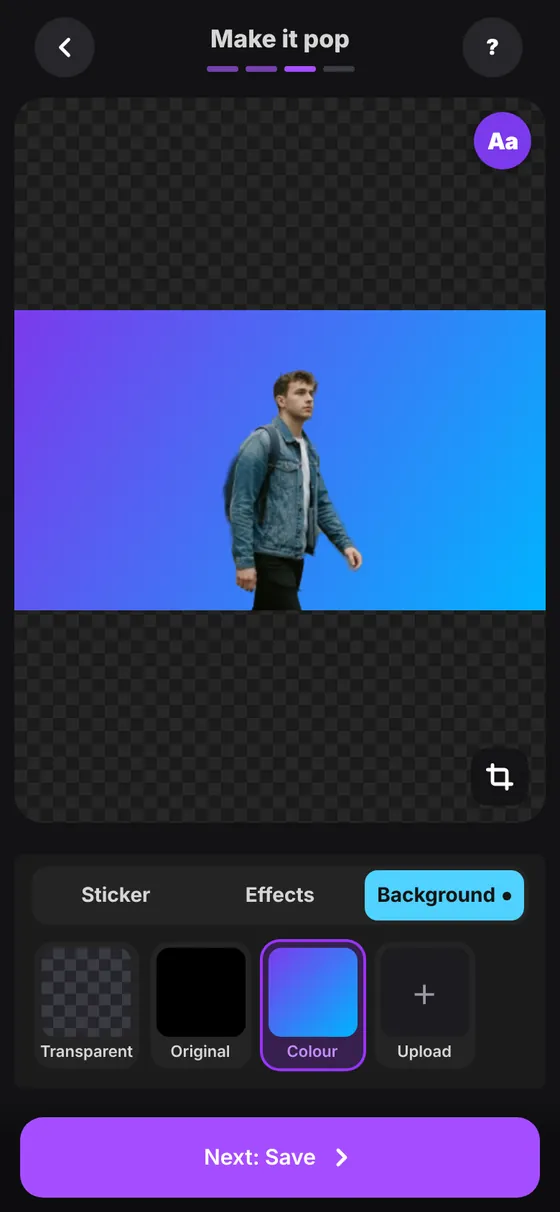
The four choices
- Transparent — no background: a see-through sticker. This is where you start.
- Original — the clip's own picture stays behind your cut-out. Handy when you only want an outline, an effect or text on the video.
- Colour — a window opens (on a phone it slides up from the bottom). Solid gives you 16 colours, any colour from the colour wheel, or a colour code. Gradient has 6 ready-made blends; tap either end of the bar to change its colour, and pick a direction: down, across, diagonal or from the centre.
- Photo, video or GIF — choose any picture, video or GIF. Then pick how it fits: Fill (fills the whole sticker, edges may be cut), Fit (the whole picture, with black bars) or Blur (the whole picture over a blurred copy of itself). Use Change to pick another file.
Video and GIF backgrounds
- They move in step with your sticker, at the same frame rate, so nothing stutters.
- They loop to your sticker's length: a longer background is cut where your clip ends, a shorter one starts again.
- Only the first 15 seconds are used.
- On a photo sticker, a moving background turns the photo into a loop as long as the background.
Saving
- The file isn't see-through any more. It looks the same everywhere, with the background included.
- MP4 video. Choose MP4 video when you save, on a computer or a phone. (You can save any sticker as a video; without a background the empty parts are black.) Very short clips play a few times, so the video lasts at least 3 seconds — good for Reels, TikTok and Stories.
- Sticker apps (WhatsApp, GIPHY, Discord) expect see-through stickers. With a background they show as a square picture instead of a cut-out.
- Effects and text. An effect moves only the sticker; the background stays still behind it. Text always sits on top.
Want to check a shadow or edge on white? Pick Colour → white, then switch back to Transparent before saving.

Try it with your own videoFree, no sign-up, no watermark — and your video never leaves your device.
Make a sticker