Morph pictures into each other
Turn one picture into the next with Morph: pick 2 to 10 pictures, choose a morph style and save a GIF, WebP, APNG or MP4. Free, no sign-up, nothing uploaded.
Morph is GifNoBg's second tool. Pick a few pictures and it turns each one into the next: the shape of one subject flows into the shape of the next, or the pictures melt, glitch, swirl or burst into each other. Then save it as an animated GIF or a video. Morph is still in beta, so it keeps getting better.
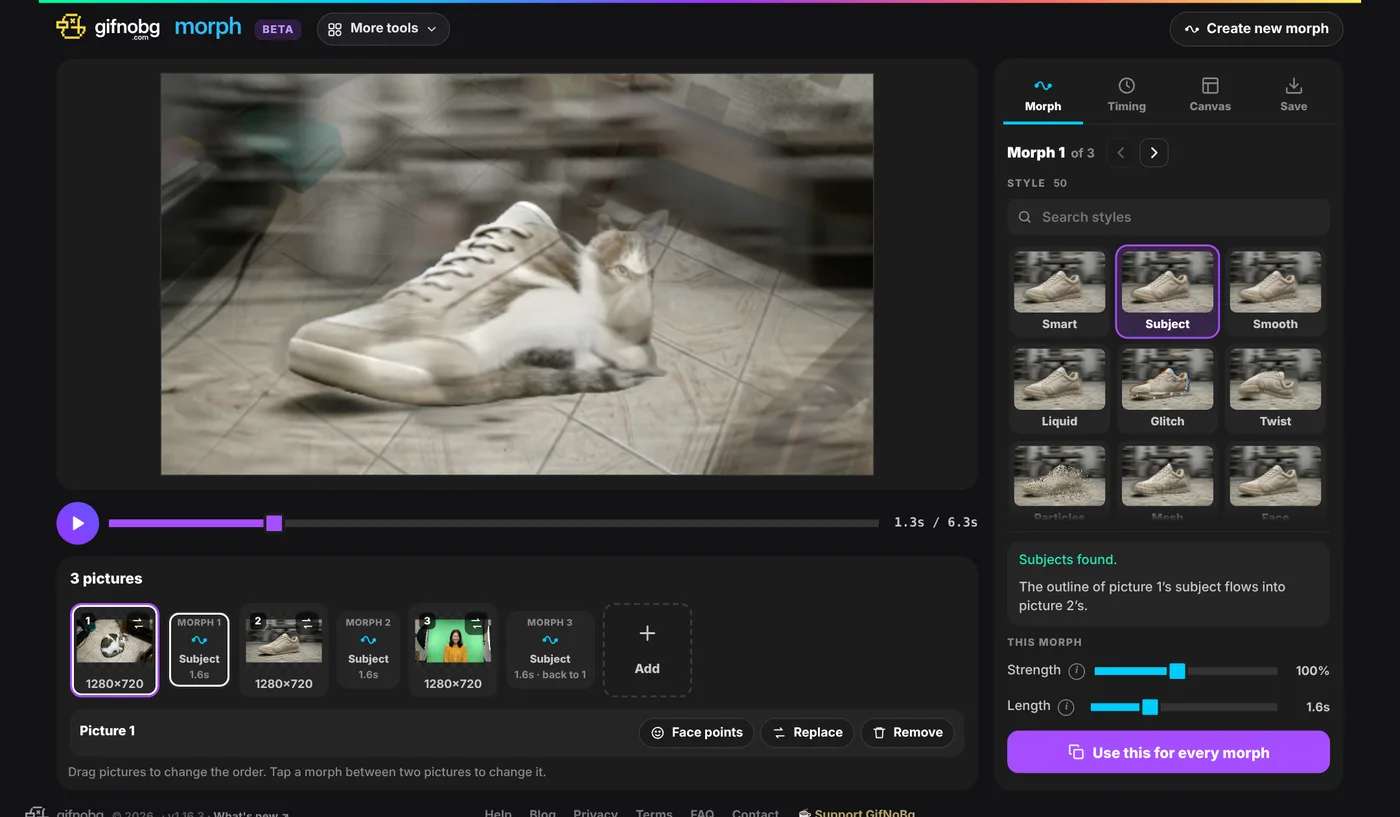
Make your first morph
- Open gifnobg.com/morph, or choose More apps next to the logo and pick Morph.
- Tap Upload pictures and choose 2 to 10 pictures (PNG, JPG or WebP). You can also drop them onto the page.
- It plays right away. Each picture turns into the next one, and with Loop the last one turns back into the first.
- Go to Save, pick a format and tap Make my GIF (or MP4). Then Download.
Pictures with one clear subject each (a person, a pet, a product) give the best morphs. Similar framing helps too: two head-and-shoulders photos morph more smoothly than a close-up and a wide shot.
The pictures bar
Under the picture you see your pictures in order, with a Morph chip between every two of them.
- Change the order: drag a picture (on a phone, press and hold it first).
- Add more: tap Add at the end of the bar (up to 10 pictures).
- Replace or remove a picture: tap it, then Replace or Remove.
- Change one morph: tap the chip between two pictures. The Morph tab then shows Morph 1 of 3 and so on; the ‹ › arrows step through them.
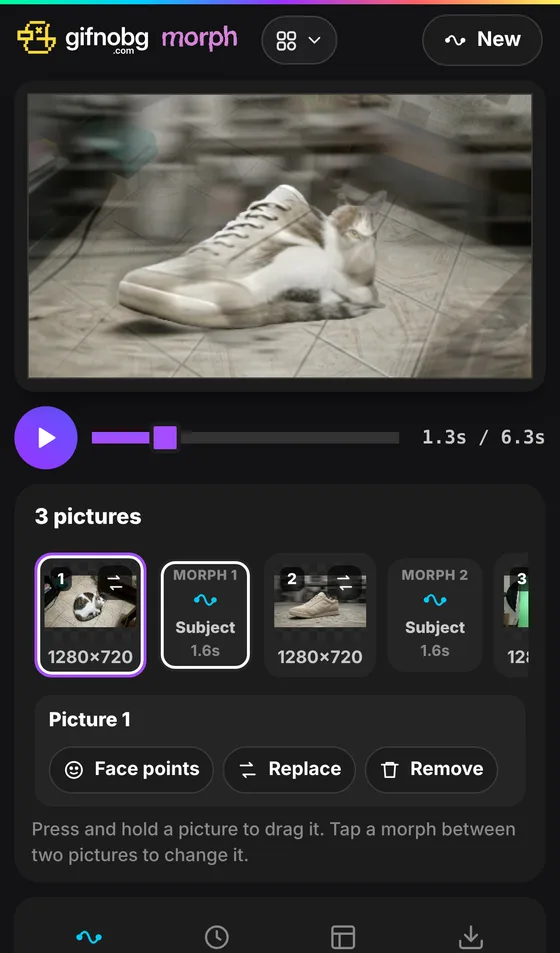
Pick a style
The Morph tab has over 170 styles, sorted into groups you can tap above the tiles: Smart, Wipes & shapes, Warp & liquid, Motion & 3D, Light & colour, Patterns & tiles, Retro & glitch, Art & paint, Nature and Pieces & particles. Every tile plays a short preview with your own pictures, and the search box finds them by name or look (try “swirl”, “glass” or “retro”).
- Smart (the one it starts with) — finds matching parts in both pictures and moves them onto each other. With two people it lines up faces and bodies.
- Subject — finds the main subject in each picture and bends its outline into the next one's.
- Smooth — a calm, seamless flow from one picture to the next.
- Face — for two portraits: eyes, nose and mouth land on each other. See Morph two faces or two people.
- And 46 more, from Liquid, Glitch and Twist to Ink, Smoke, VHS and Shatter.
Under the styles you can fine-tune the chosen morph:
- Strength — gentler or wilder. 100% is the normal look.
- Length — how long this morph takes.
- Keep the background calm — only the subjects change while the backgrounds simply blend.
- Variation (on styles with a pattern) — a different take on the same style: another direction, starting point or pattern size.
- Use this for every morph — copies the style and settings to all the other morphs.
Timing
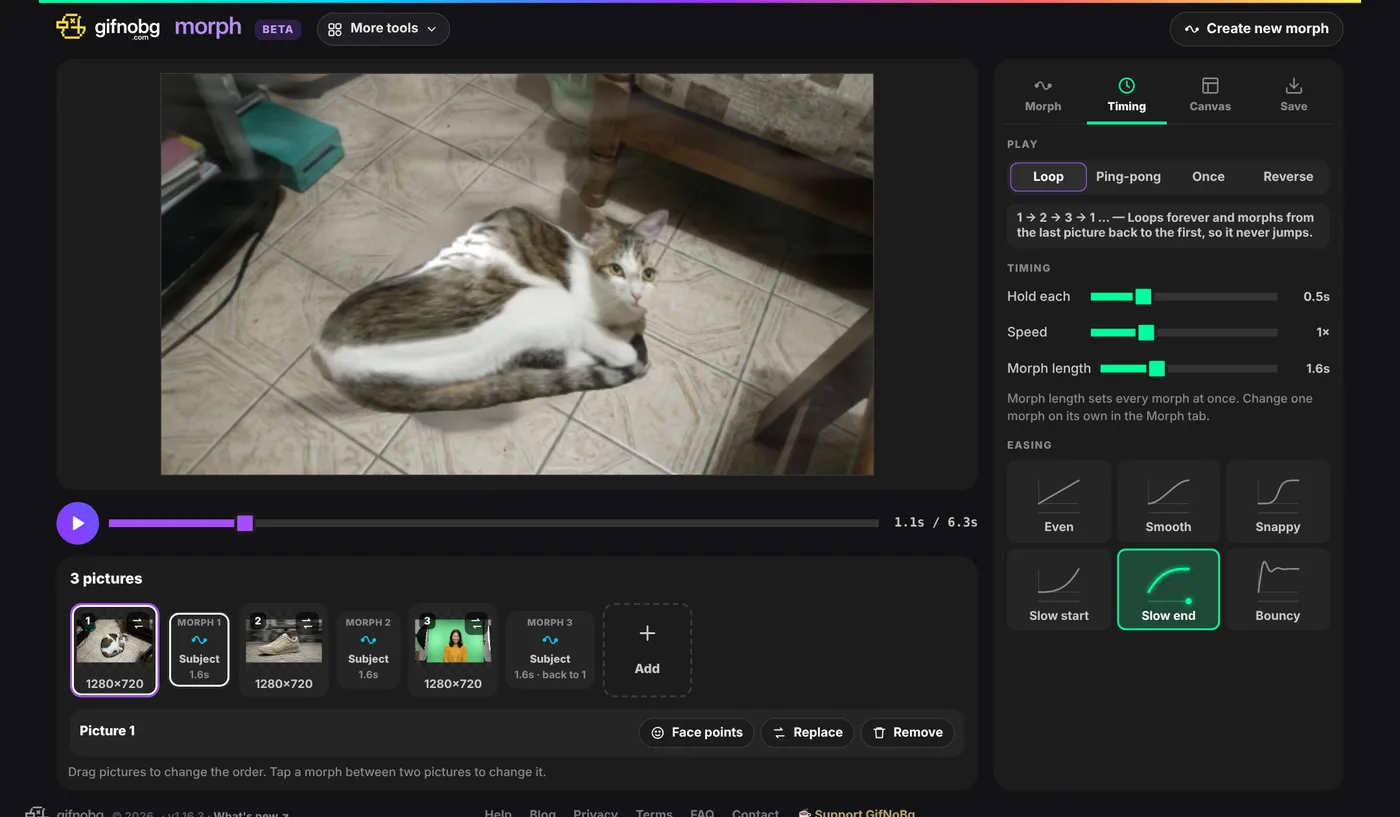
- Play: Loop (1 → 2 → 3 → 1 and round again), Ping-pong (forwards, then backwards), Once or Reverse.
- Hold each — how long every picture stays still before it morphs.
- Speed — makes the whole animation faster or slower.
- Morph length — sets every morph at once.
- Easing — how the movement feels: Even, Smooth, Snappy, Slow start, Slow end (the default) or Bouncy. Tap a tile to watch a dot move the way your morph will.
Canvas: size and background
- Size — Original, Square, Portrait, Story (9:16), Wide (16:9) or Custom (type your own width × height).
- Pictures — Fill covers the whole canvas (edges may be cropped); Fit shows each whole picture. Picture size zooms them in or out.
- Background — See-through, a Colour or a Gradient. It shows wherever a picture doesn't cover the canvas.
Your pictures stay on your device
Like the background remover, Morph works inside your browser. Your pictures are never uploaded. The first time you use Smart, Subject or Face, your browser downloads the small AI helpers it needs, so that first morph can take a few extra seconds.