Change frames, timing and crop
In GIF Maker, drag frames into order, set how long each one shows, add transitions, play back and forth, crop frames on the picture and trim empty see-through edges.
Your frames are in the bar under the picture. Tap one to pick it; the bar underneath then acts on that frame.
Order and pick frames
- Change the order: drag a frame to a new place. On a phone, press and hold it first.
- Pick several: Ctrl-click (⌘-click on a Mac) or Shift-click for a range. On a phone, tap Select and then the frames. All picks every frame. Picked frames move, change and delete together.
- Duplicate, Reverse (the picked frames' order), Mirror, Flip, Turn and Delete are in the frame bar.
- More has the rest: add pictures before or after, Reset timing (back to a GIF's own timing), pick every 2nd or 3rd frame, and Split into a grid…, which cuts a sprite sheet into frames.
Timing
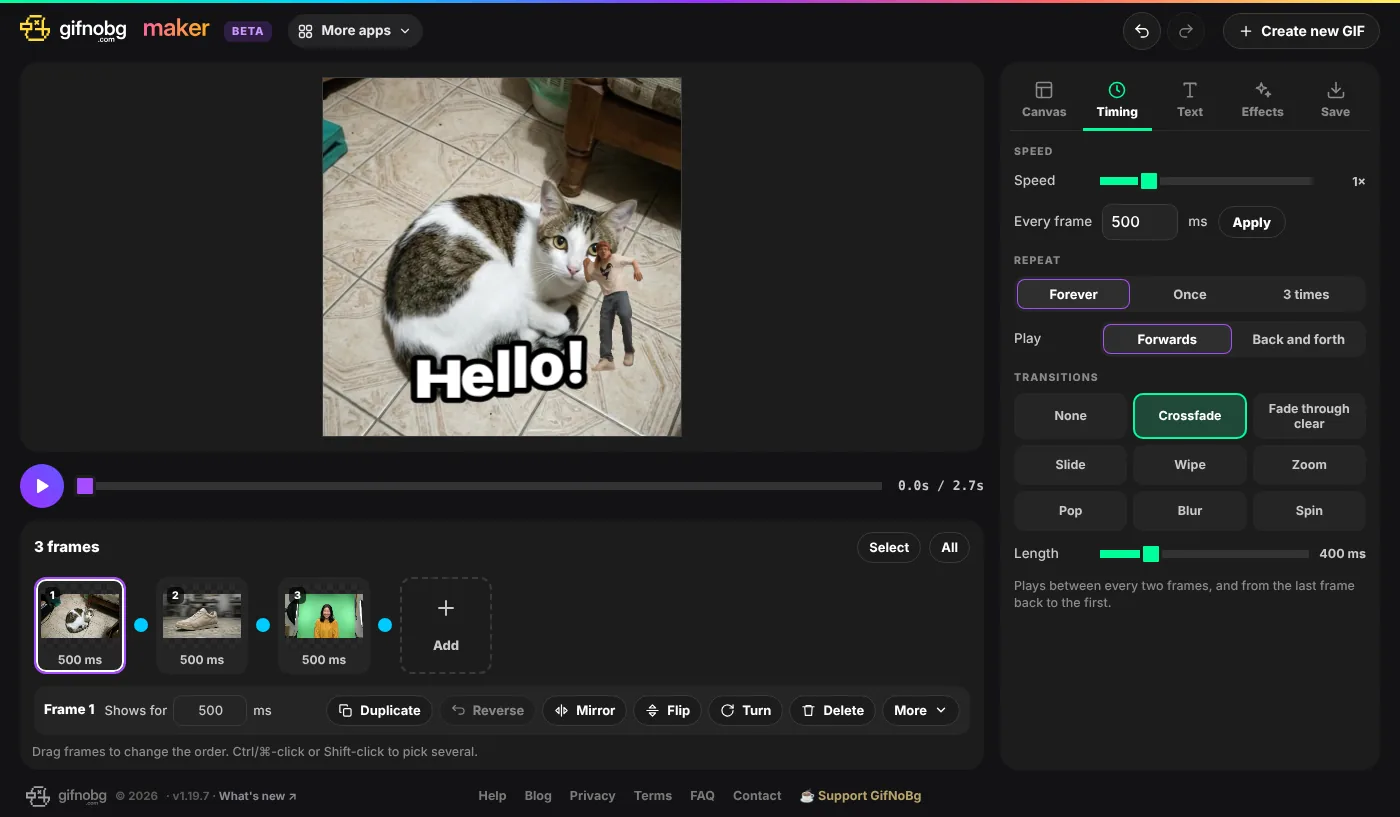
- Shows for (in the frame bar) — how long the picked frames show, in milliseconds. 1000 ms is one second.
- Every frame — type a time and tap Apply to give all frames the same time.
- Speed — makes the whole animation faster or slower, keeping each frame's own time in proportion.
- Repeat — Forever, Once or 3 times.
- Play: Back and forth — plays 1 2 3 2 1 2 3…, without showing the first and last frames twice.
- Transitions — Crossfade, Fade through clear, Slide, Wipe, Zoom, Pop, Blur or Spin between every two frames, and from the last frame back to the first when it repeats. Length sets how long each transition takes.
Crop a frame
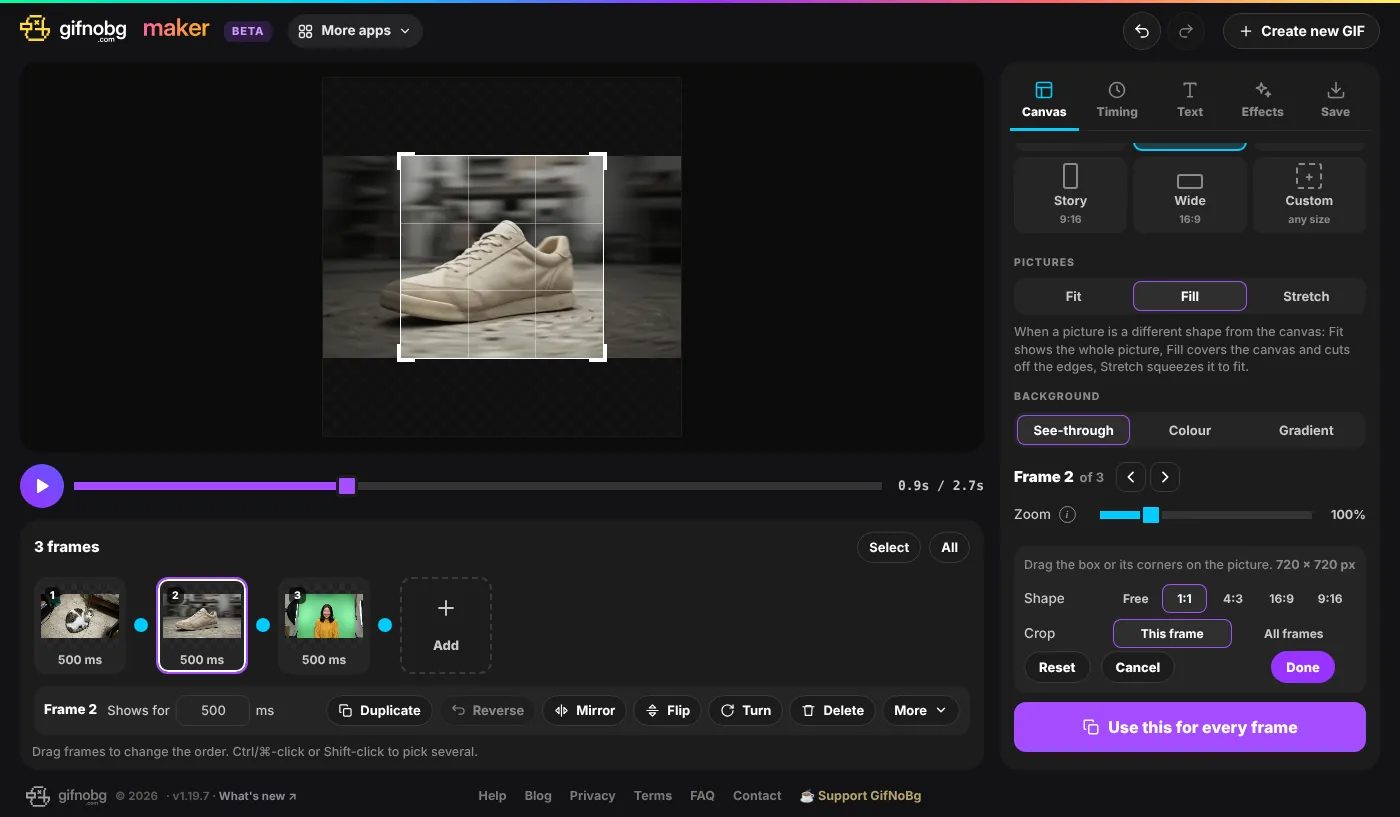
- Pick the frame, open Canvas and tap Crop under Zoom.
- Drag the box, or its corners, on the picture. Shape keeps it Free or locks it to 1:1, 4:3, 16:9 or 9:16.
- Choose whether it applies to This frame, the Picked frames or All frames, and tap Done.
Cropping never changes your picture itself. Remove crop brings the whole picture back, and Undo works too.
Trim edges cuts away the see-through margin around stickers. It looks at all the frames together, so nothing that moves gets cut off.
Size, Fit and Fill
Size sets the shape of your GIF. When a picture is a different shape from it, Fit shows the whole picture, Fill covers the canvas and cuts off the edges, and Stretch squeezes it to fit. Zoom and dragging the picture place one frame; Use this for every frame copies that to all of them.