Make a GIF from pictures
Turn photos, stickers or GIFs into one animated GIF with GIF Maker: put the frames in order, add transitions, text and stickers, then save a GIF, WebP, APNG or MP4. Free and private.
GIF Maker turns a few pictures into one animation. Use photos, stickers you made in GifNoBg, or other GIFs, put them in order, and save the result as a GIF or a video. It's free, there's no sign-up and no watermark, and your pictures never leave your device.
Make your first GIF
- Open gifnobg.com/maker, or choose More apps next to the logo and pick GIF Maker.
- Tap Choose pictures and pick a few at once. You can also drop them onto the page or paste them.
- It starts playing straight away, one frame after the other.
- Go to Save, pick a format and tap Make my GIF. Then Download.
What you can open
- Photos and pictures: PNG, JPG, WebP, AVIF, BMP and SVG, and HEIC photos where your browser can open them.
- Animations: GIFs, animated WebP and animated PNG. Every frame comes in with its own timing, so you can join several GIFs into one.
- A ZIP of pictures: they're added in name order (frame-2 comes before frame-10). Anything that isn't a picture is skipped.
You can mix them: a GIF, then two photos, then another GIF. A project can hold up to 1,000 frames.
The tabs
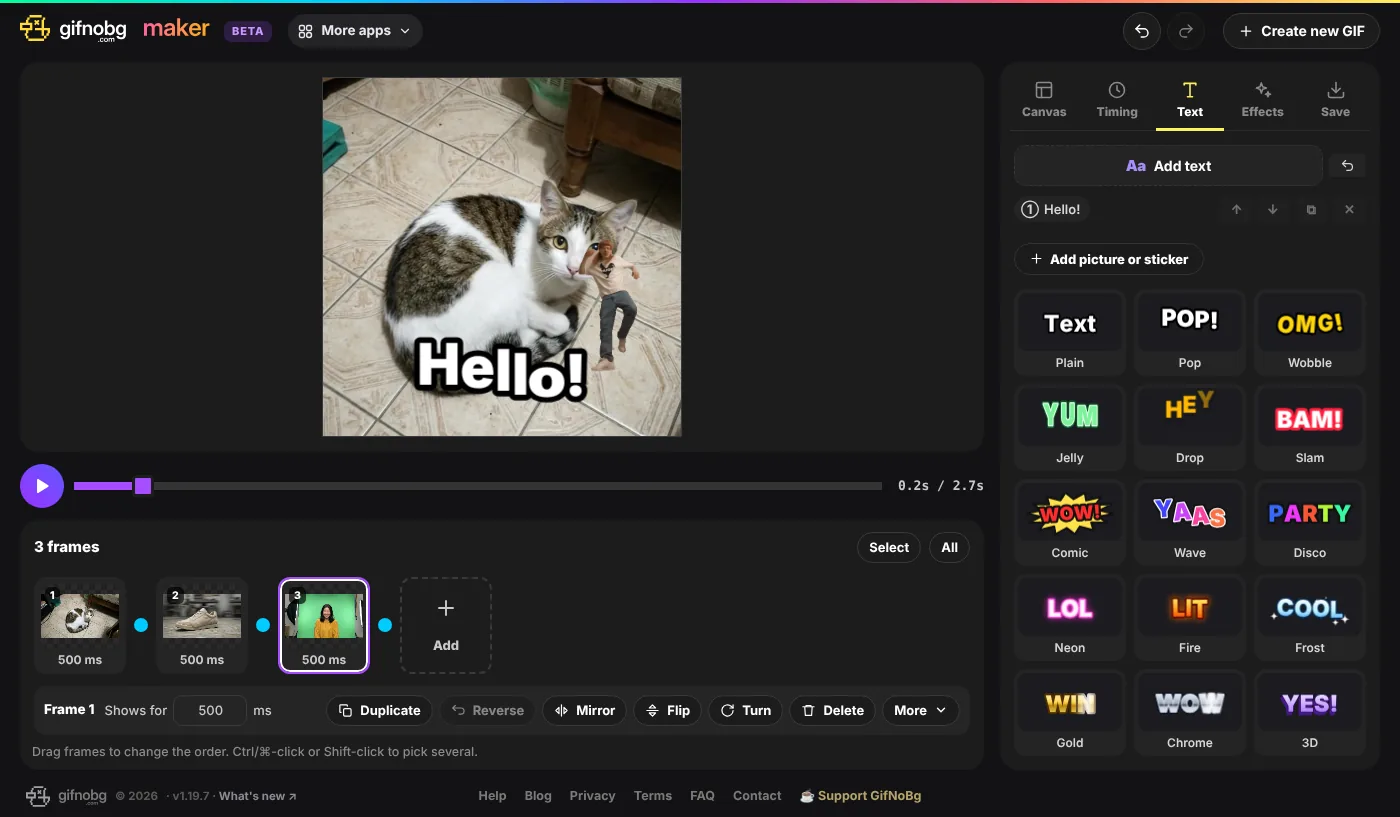
- Canvas — the size of your GIF (Original, Square, Portrait, Story, Wide or Custom), the background, and the chosen frame's zoom, crop and position.
- Timing — speed, how long every frame shows, repeat, back and forth, and transitions between frames. See Change frames, timing and crop.
- Overlay — animated text, animated emoji stickers and your own pictures on top. See Add text, stickers, effects and blur.
- Effects — blur boxes, moving effects, colours and sticker outlines.
- Save — GIF, WebP, APNG or MP4, and the file size. See Save a GIF, a small file or a video.
Undo and Redo
The arrows at the top undo and redo every change: moving frames, crops, text, stickers, effects, everything. On a computer you can also press Ctrl+Z (⌘+Z on a Mac) and Ctrl+Shift+Z.
On a phone
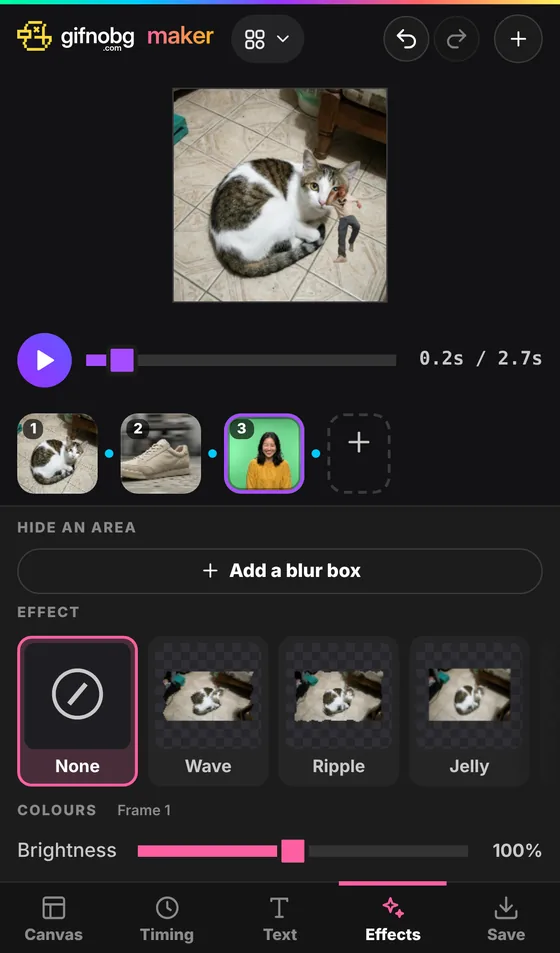
On a phone the picture, the play button and your frames stay at the top, and the settings sit in a panel above the tabs at the bottom, so you always see what a change does. Tap a frame to see its actions (duplicate, turn, delete and more) in that panel.