Extract frames from a GIF or video
Split a GIF, animated WebP, APNG or video into its frames. Pick the ones you want and save them as PNG, JPG or WebP pictures in a ZIP, or as one sprite sheet. Free, in your browser, nothing uploaded.
Extract Frames splits a GIF, an animated WebP or PNG, or a video into its frames. You see every frame with its number and time, pick the ones you want, and save them as pictures or as one sprite sheet. Everything runs in your browser on your own device, so your files are never uploaded.
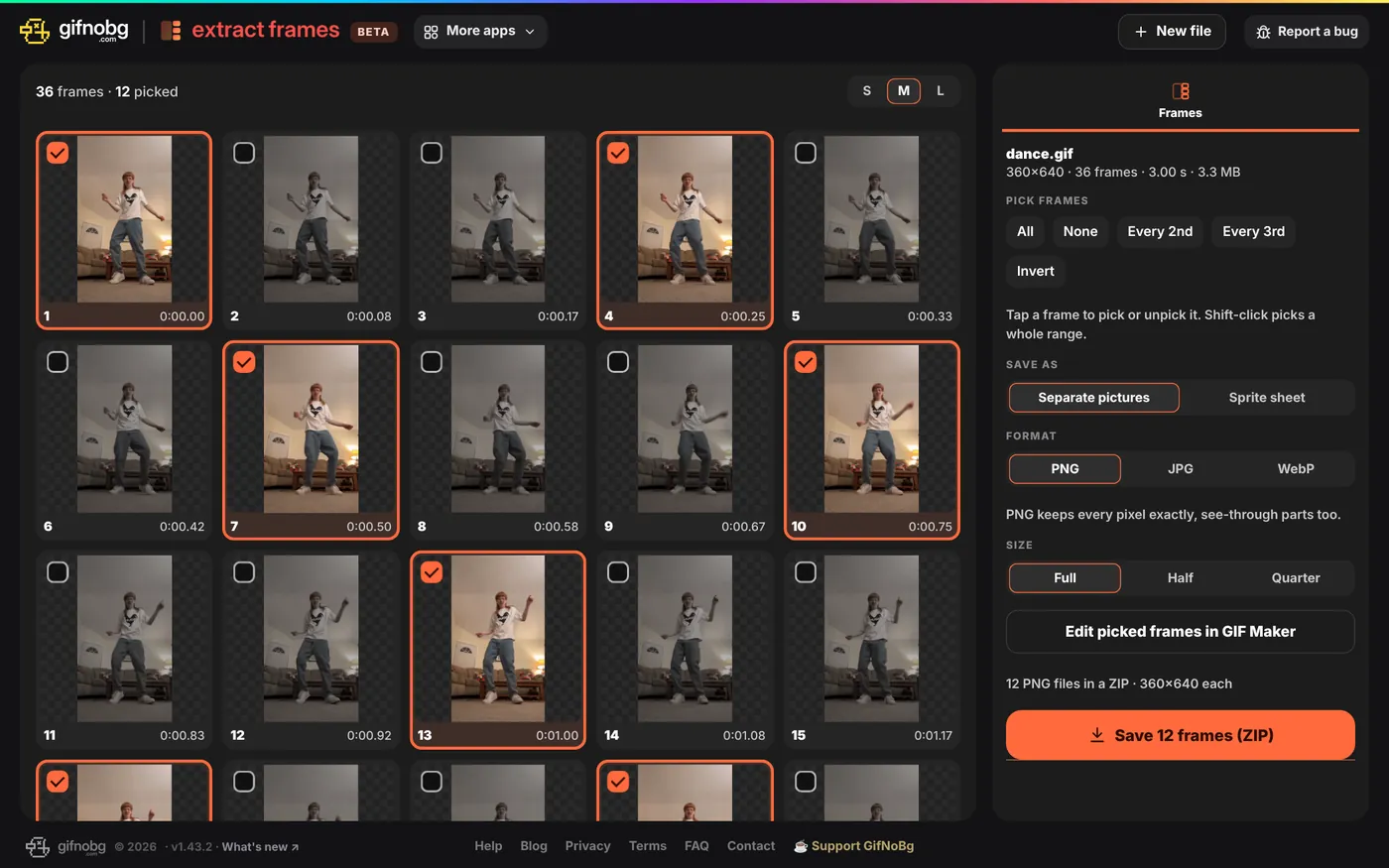
Split a GIF into frames
- Open gifnobg.com/extract-frames, or choose More apps next to the logo and pick Extract Frames under Utilities.
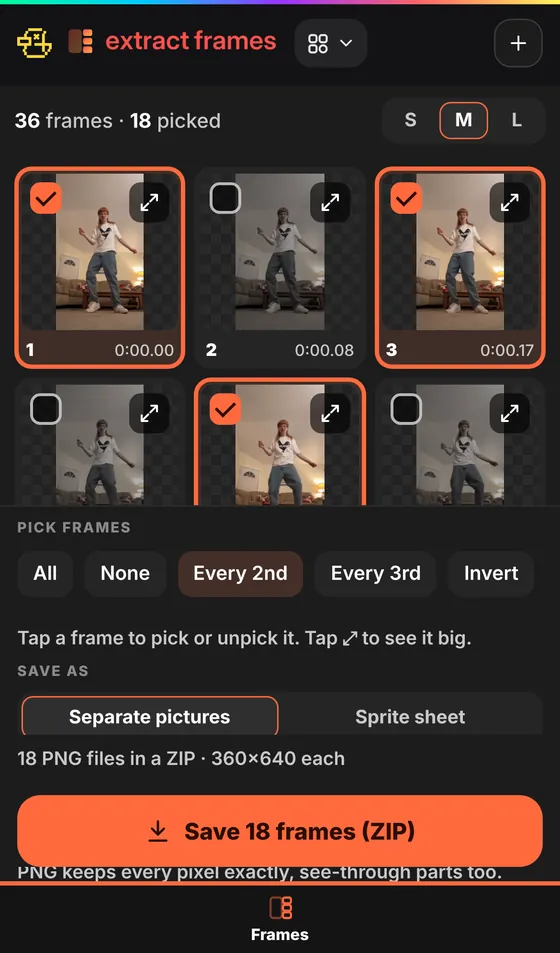
- Tap Choose a GIF or video, or drop the file onto the page. All frames show in a grid, all of them picked.
- Pick the frames you want: tap a frame to pick or unpick it, or use All, None, Every 2nd, Every 3rd or Invert. On a computer, shift-click picks a whole range.
- Choose the Format (PNG, JPG or WebP) and the Size (Full, Half or Quarter).
- Tap Save. Several frames come in one ZIP named after your file (for example dance-frame-007.png); a single picked frame is saved as one picture.
S, M and L above the grid change the size of the thumbnails, handy for long GIFs.
Look at one frame up close
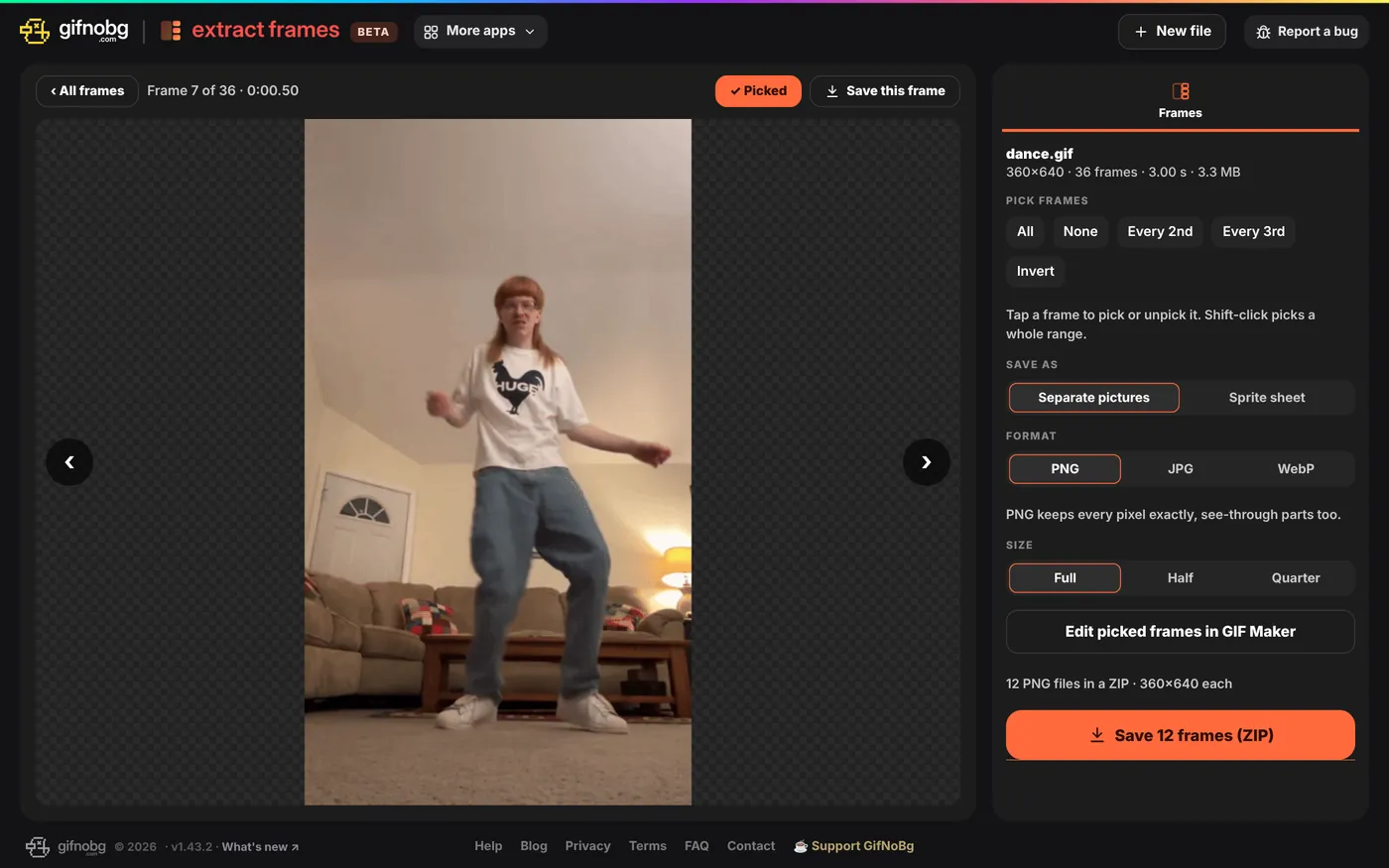
Tap ⤢ on a frame (or double-click it) to see it big. Use ‹ › or the arrow keys to step through the frames, Pick to add it to your choice, or Save this frame to download just that one.
Which format?
- PNG keeps every pixel exactly, see-through parts too. Best for stickers and anything you'll edit.
- JPG is smaller and opens everywhere, but can't be see-through: those parts become white.
- WebP is small, can be see-through and opens in every modern browser and app.
Make a sprite sheet
A sprite sheet is all the frames side by side in one picture, in rows and columns. Games, game engines and websites use them to play an animation from a single file. Go straight to gifnobg.com/gif-to-sprite-sheet, which opens ready for sprite sheets, or choose Sprite sheet under Save as here.
- Pick the frames you want in the sheet. Leave out any you don't need, or pick every 2nd or 3rd frame.
- Under Save as choose Sprite sheet. A small preview of the whole sheet appears and changes as you go.
- Choose a Layout: Auto (about square), one Row, one Column, or Grid with the Columns or Rows you want.
- Add Spacing between the frames and Padding around the sheet if your game or tool needs it.
- Choose what's Behind the frames: see-through, white, black or any colour. Under Order, Last → first puts the frames in reverse.
- Tap Save sprite sheet. The line above the button shows the size of the whole sheet and of each frame.
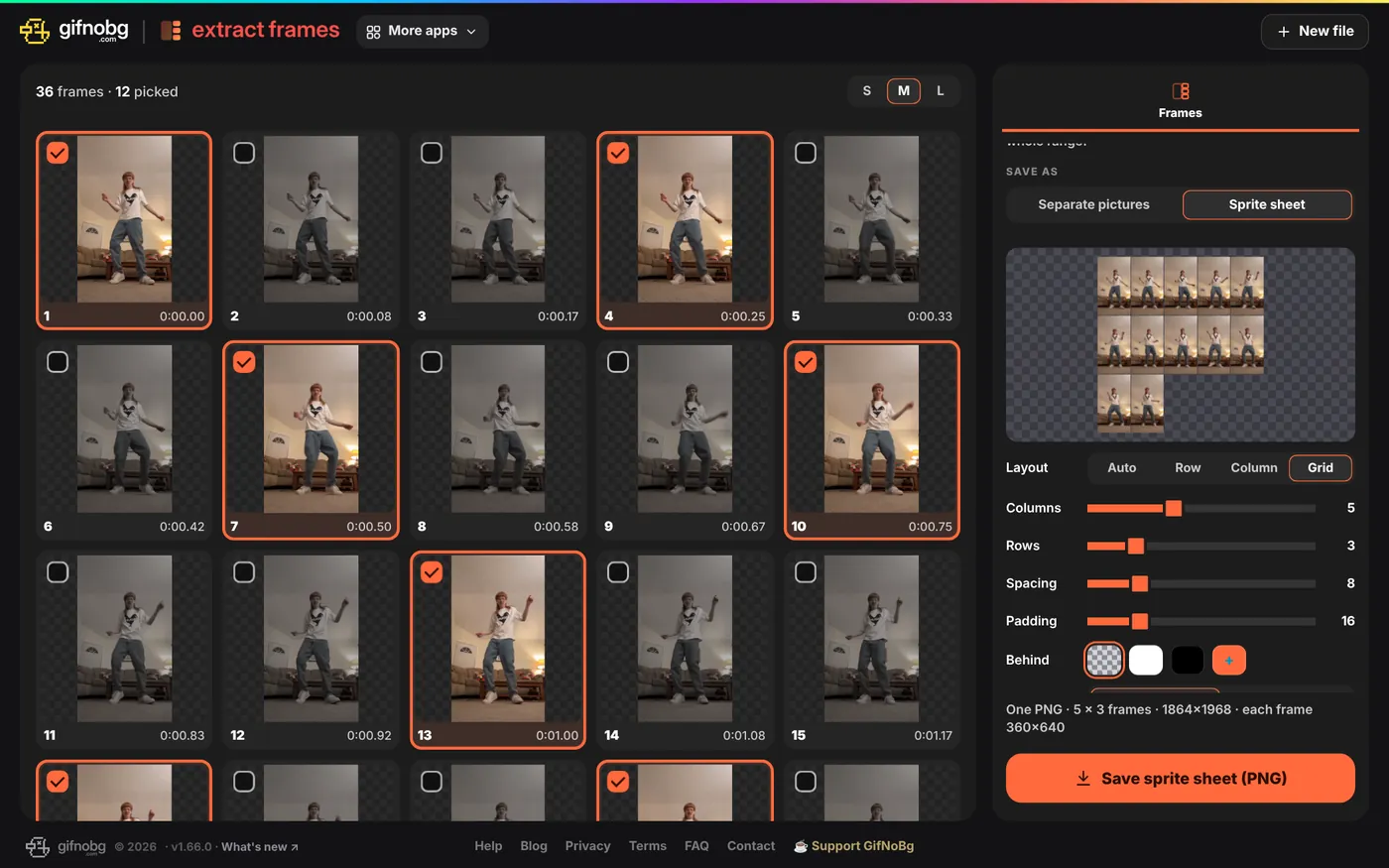
A very big sheet is made a little smaller so it fits in one picture (about 16 million pixels), and the line above the button tells you the size each frame gets.
Frames from a video
- Choose an MP4, MOV or WebM.
- Drag the two handles to pick the part you want, up to 60 seconds.
- Under How many pictures? choose A few (1 every second), Some (5), Lots (15) or Every moment (30 every second, as smooth as a normal video).
- Under Picture size choose Small, Medium, Large or Original; each shows its size in pixels. The box underneath says how many pictures you'll get.
- Tap Use this part. The frames open in the grid like a GIF's, with their times in the video.
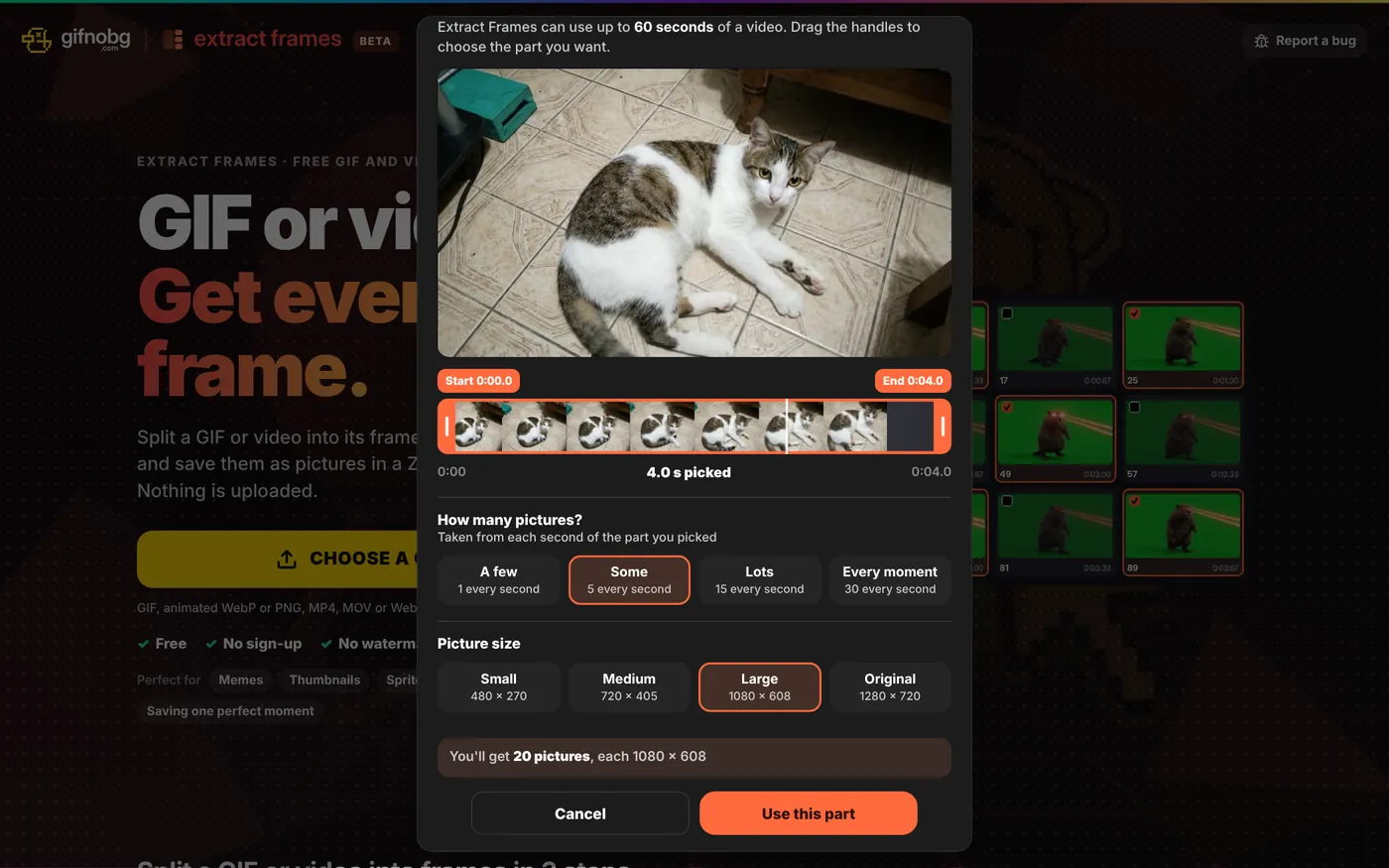
If it would be too many frames for your device, the button stays grey: pick a shorter part, fewer pictures or a smaller size.
Broken GIFs and GIF Maker
A GIF that was cut off or damaged still opens: Extract Frames keeps every frame it can read and says what it fixed under Repaired. Want to make a new GIF from some of the frames? Pick them and tap Edit picked frames in GIF Maker: they open in the GIF Maker with their timing, ready for text, stickers and effects.
Very long GIFs and big videos need a lot of memory. On a phone, use a shorter part or a smaller size.