Send your work to another app
Made something? Send it straight to another GifNoBg app: remove its background, add effects or a meme template, make it dance, upscale it or make it smaller. Go back any time and your work is still there.
Every GifNoBg app does one thing well. Send to lets you chain them: remove a background, then add a meme template in Effecto, then make it smaller in Squeeze, without downloading and uploading in between.
Send it on
- Make your file as usual: tap Make & download (or Export in the background remover).
- Under the finished file, Send to shows the apps that can take it. A still picture can go to Wiggle, Morph or Puppet; a GIF to Effecto, the GIF Maker or Extract Frames; a video to Video to GIF; anything to Squeeze.
- Tap one. The app opens with your file already in it.
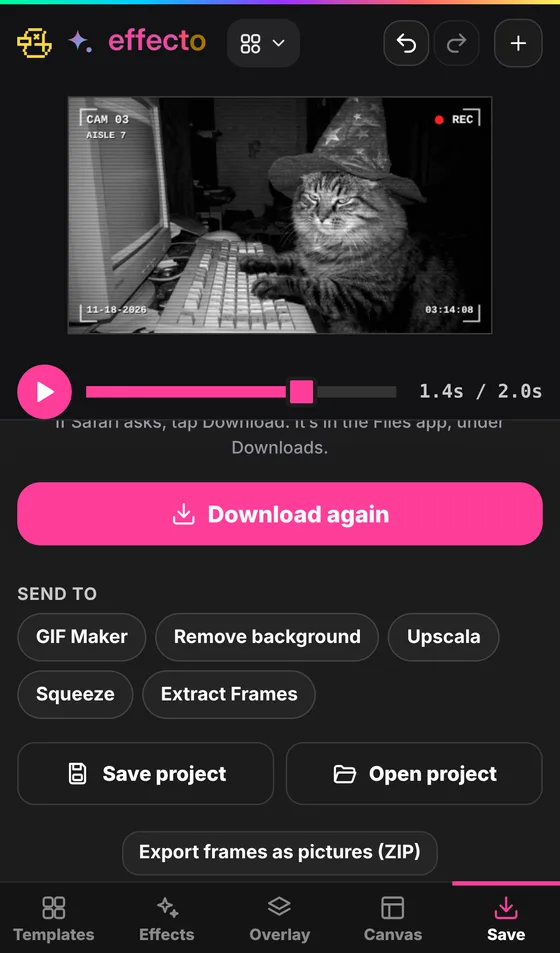
Go back where you were
The app you came from keeps your work for you. Tap Back to … (bottom left on a computer, top on a phone) and it opens again exactly as you left it: pictures, words, effects and all. Tap × to hide the button.
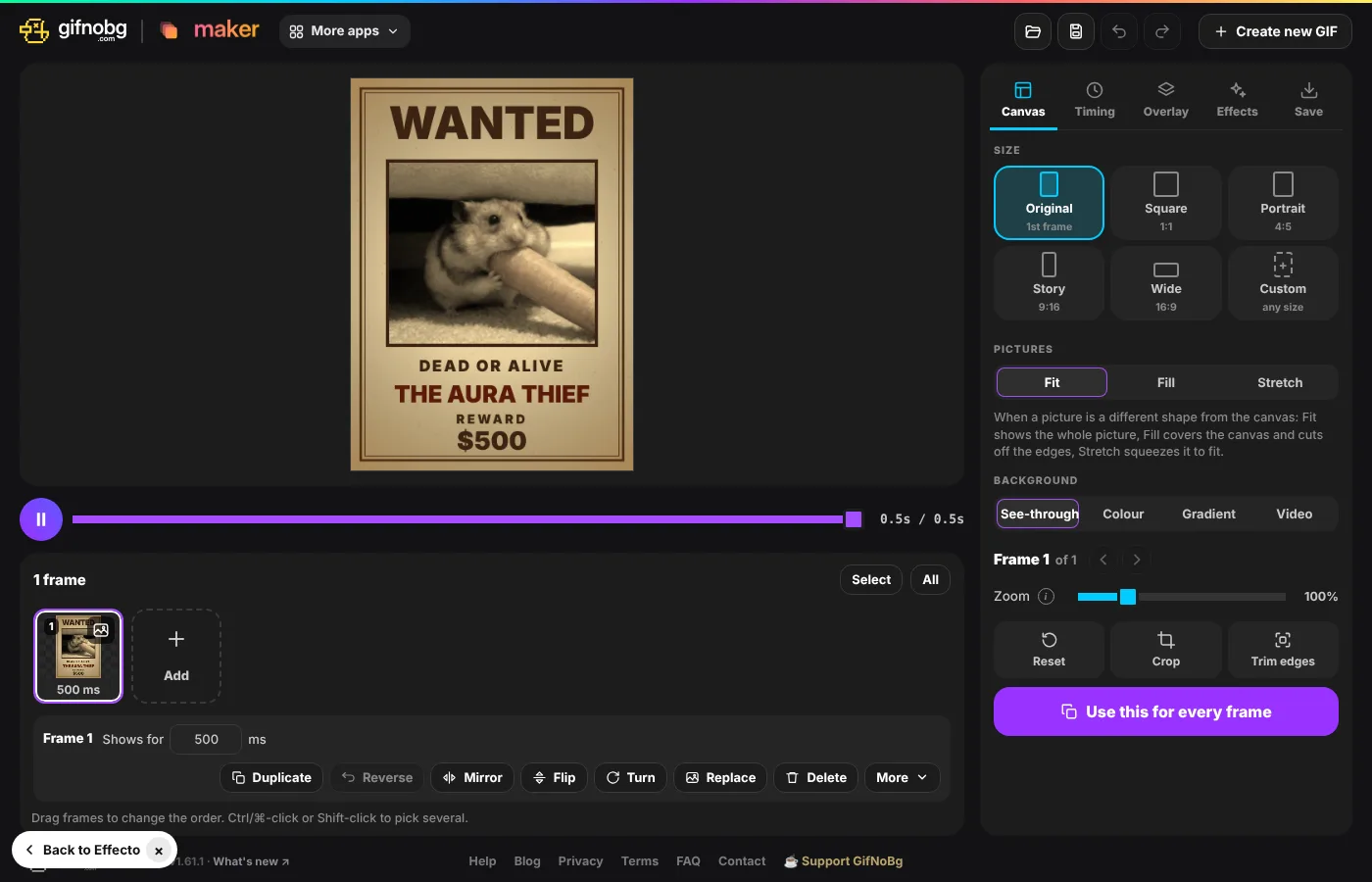
Recent work
Your last five pieces of work are kept on this device and shown under Recent on each app's start page. Tap one to carry on. They're kept in your browser only: nothing is uploaded, and clearing your browser's data removes them. For anything you want to keep for good, use Save project.