Make a GIF or video for Instagram Stories
Step by step: turn pictures, GIFs or a video clip into a 9:16 Instagram Story (1080×1920 MP4), or put your own animated sticker on a Story. Free, nothing uploaded.
Instagram Stories are tall: 9:16, best at 1080 × 1920 pixels. Instagram doesn't upload GIFs to a Story, so there are two ways to use your animation:
- As the whole Story: save it as a tall MP4 video and post it. Stories can be up to 60 seconds per clip.
- As a sticker on top of a photo or video: stickers come from GIPHY, so your animation goes there first. See Use your own sticker in Instagram Stories.
Make a Story video
- Open the GIF Maker and choose your pictures or GIF. (Got a video? Use Video to GIF or Effecto: they have the same Canvas and Save.)
- In Canvas, choose Story 9:16. Under Pictures, Fit shows all of each picture and Fill covers the whole screen.
- Under Background, pick a Colour or a Gradient. A video can't be see-through, so empty parts would turn black.
- Add text, stickers or effects if you like.
- Open Save, choose MP4 and 1080p. It shows 1080×1920, the size Instagram recommends.
- Press Make & download MP4; it downloads by itself.
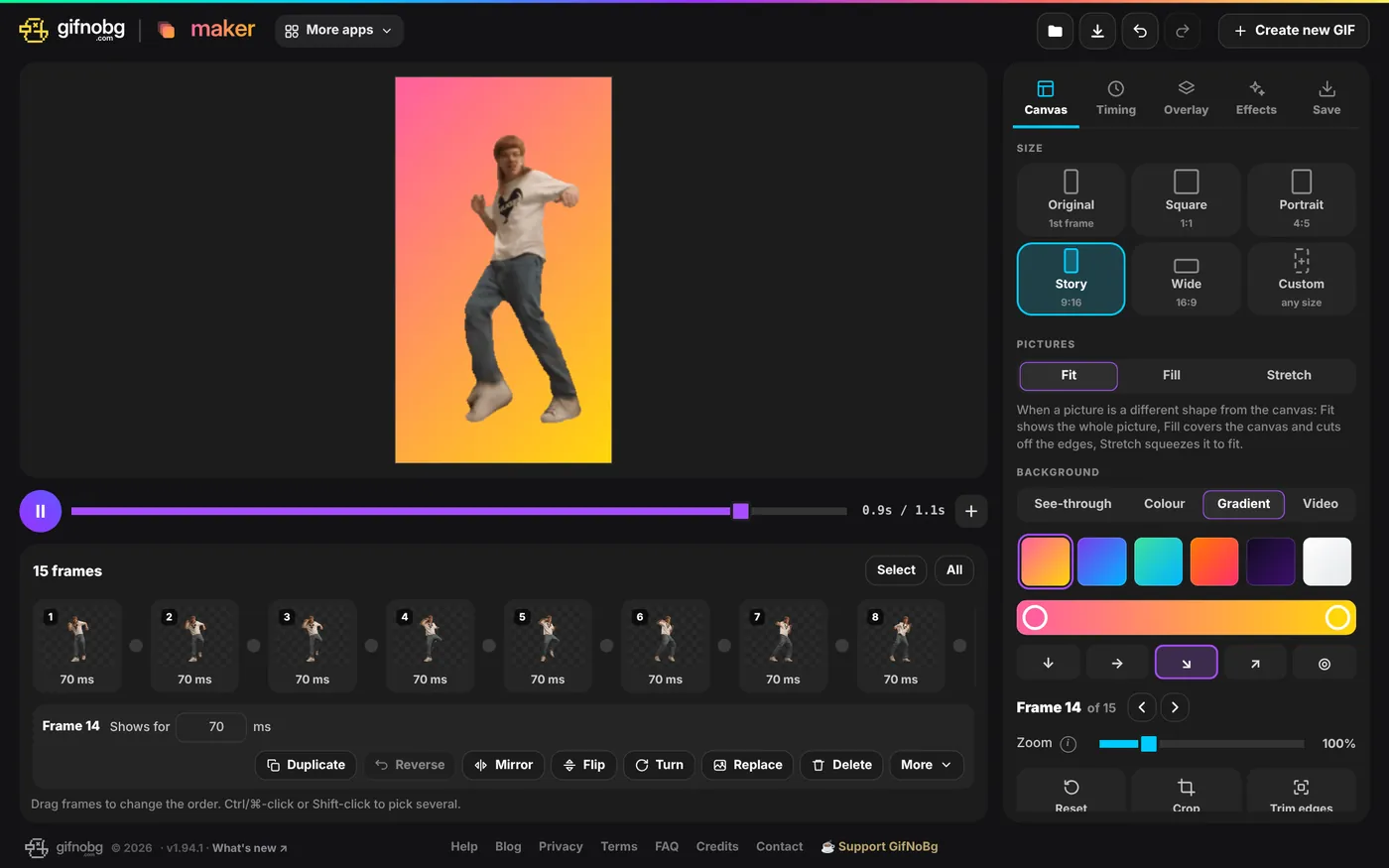
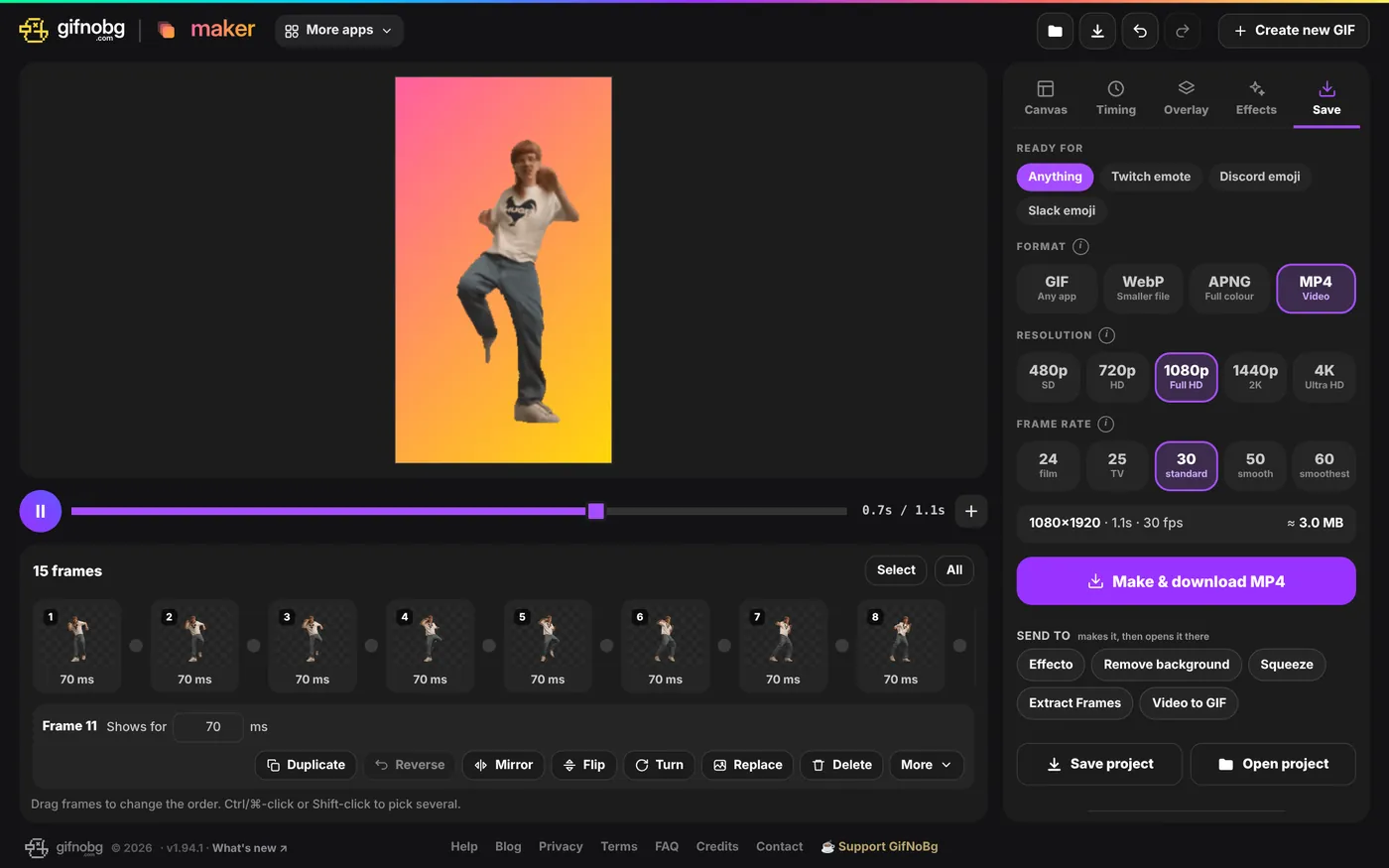
Starting from a person or pet in a video? Remove the background at gifnobg.com first, save it with Just a GIF, then open that GIF in the GIF Maker and follow the steps above to put it on a coloured background.
Post it
- Save the MP4 to your phone (on iPhone, tap Download and then save it to Photos).
- In Instagram, tap + → Story and pick the video from your gallery.
- Add text or music if you like, then share.
Keep important things away from the top and bottom edges: Instagram puts your name at the top and the reply bar at the bottom. A short loop (a few seconds) plays again and again, which suits Stories.
Instagram changes its limits and menus from time to time. These steps match Instagram in 2026.