Stack effects, Surprise me and add text
Put up to three effects on one picture, change their order, let Surprise me pick for you, compare with the original, and add animated text and stickers.
One effect is fun. Three at once is ridiculous, in the best way. Here is how to combine them, compare with the original, and put text and stickers on top.
Up to three effects
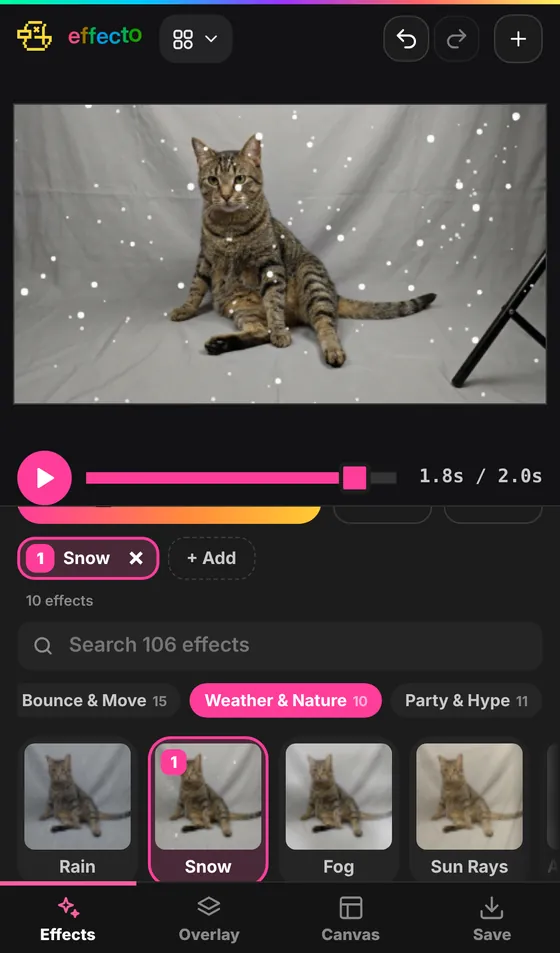
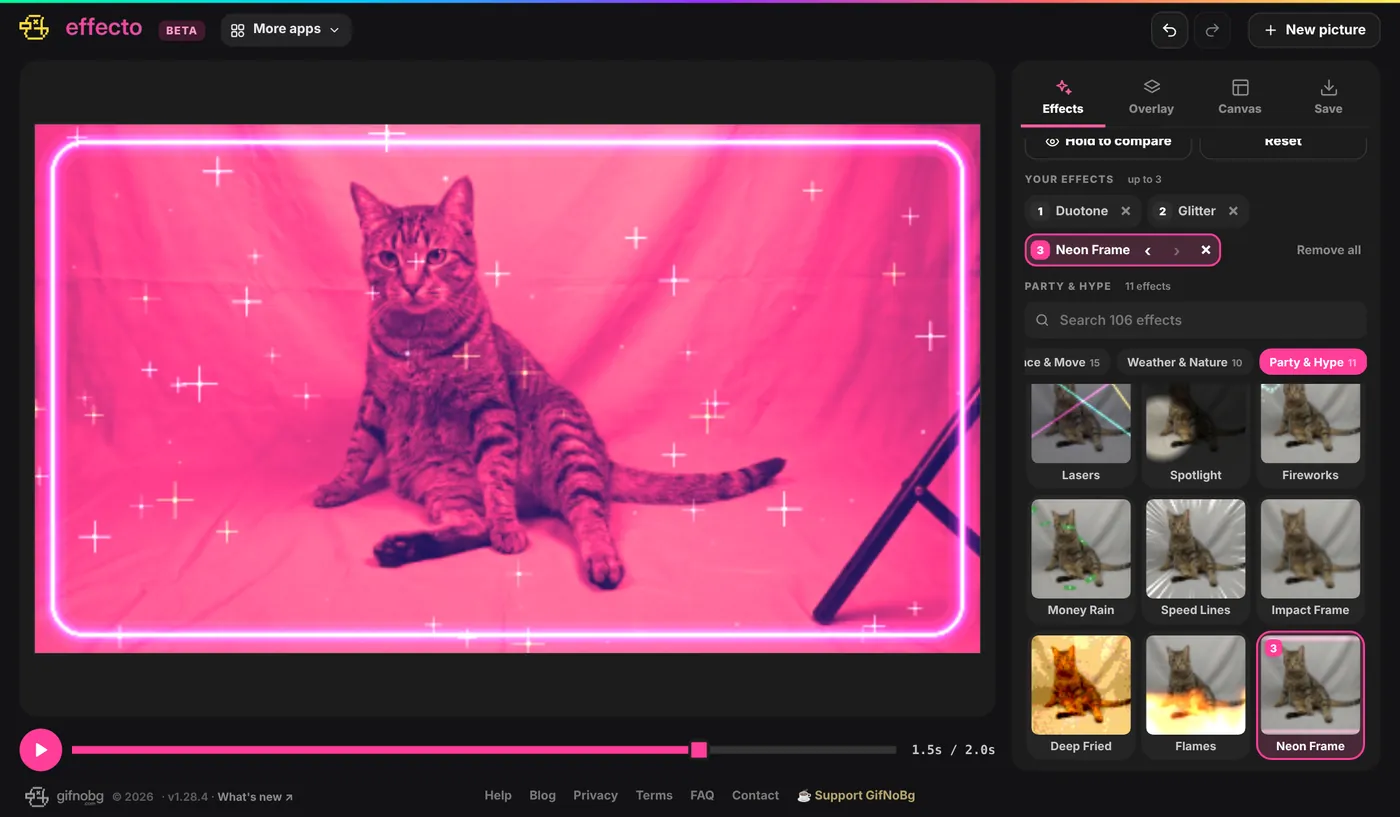
- Pick your first effect. It appears under Your effects as a chip with the number 1.
- Tap + Add, then tap another effect. It becomes number 2. Do it once more for a third.
- Tap a chip to pick that effect and change its settings. Tapping a tile now swaps the picked effect for another.
- Use ‹ and › on the picked chip to change the order, and × to remove it. Remove all clears them.
The order matters: the effects are added one after another. Rain after Glitch looks different from Glitch after Rain, so try swapping them.
Surprise me
Surprise me picks one to three effects from different groups, with random settings, and never piles up too many heavy ones. Keep tapping for more ideas. If you liked the one before, press Undo.
Compare and start over
- Hold to compare: press and hold to see your original picture; let go to see the effects again.
- Reset: takes off every effect, text and sticker and goes back to the original picture. Undo brings it all back.
- Undo and redo: the arrows at the top, or Ctrl+Z, Shift+Ctrl+Z and Ctrl+Y (⌘ on a Mac).
Text and stickers
Open Overlay. Under Text, tap Add text, pick a look (many of them move) and type. Under Stickers, tap any animated emoji, or add your own picture under Upload. Drag them on the picture to move them, and use the corner handles to resize and turn them. They sit on top of the effects, and everything is saved together.
Under Effects → More you'll also find colour adjustments, sticker outlines and blur boxes, and Canvas changes the shape and the background colour.