Save a wiggle as a GIF or video
Save your Wiggle animation as a GIF, WebP, APNG, an MP4 video or a still PNG, and choose its size, smoothness and quality.
When your picture moves the way you like, open the Save tab.
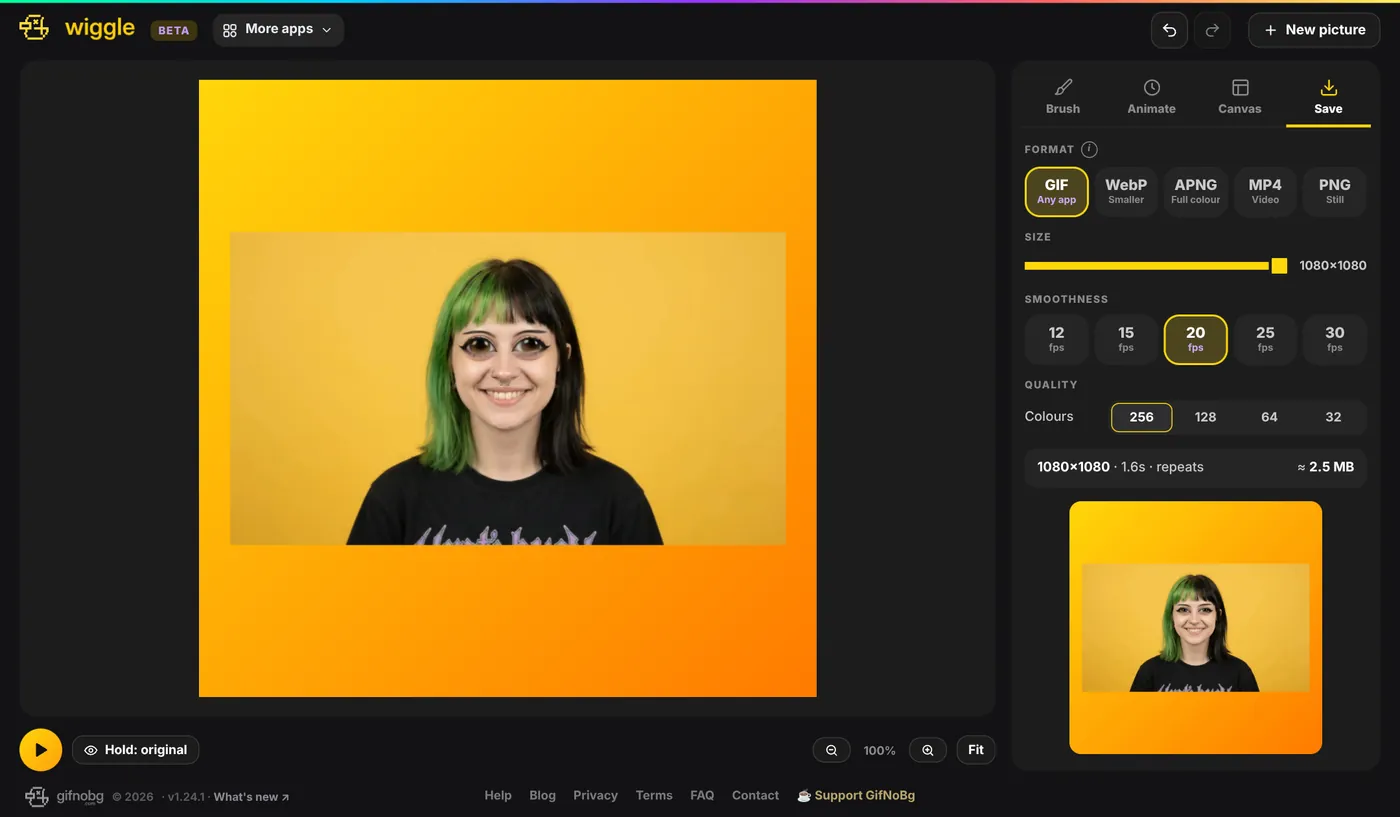
Which format?
- GIF: plays in every app and chat. Up to 256 colours, so soft colour changes can look a little grainy.
- WebP: smaller files with smooth colours. Works in most apps and browsers.
- APNG: full colour with smooth see-through edges, but bigger files.
- MP4: a normal video for Reels, TikTok, Stories and chats. Short loops play a few times so the video lasts at least 3 seconds.
- PNG: one still picture with the bend, no motion.
Size, smoothness and quality
- Size: makes the file smaller. The line next to it shows the exact width × height (the canvas size from the Canvas tab).
- Smoothness: 12 to 30 frames per second. More is smoother but bigger.
- Quality: the number of colours for a GIF, or a quality slider for WebP.
- For MP4: Resolution (480p up to 4K) and Frame rate (24 to 60).
The line above the button shows the size, the length and roughly how big the file will be. If a chat app rejects it, lower the size, the smoothness or the colours.
See-through pictures
A picture with a see-through background (for example a sticker you made in GifNoBg) stays see-through in GIF, WebP, APNG and PNG, as long as the canvas background is See-through. Videos can't be see-through: those parts turn black, so pick a colour or gradient in Canvas first.
Private by design
Everything happens in your browser. Your picture is never uploaded, and the face finder used by One-tap fun runs on your own device.