Make a picture or GIF bigger and sharper
Make a photo, drawing, GIF or short video 2×, 3× or 4× bigger and sharper with AI that runs in your browser. Compare before and after, then save a PNG, JPG, GIF or MP4. Free, no sign-up, nothing uploaded.
Upscala makes a small or blurry picture bigger and sharper. Choose a photo, a drawing, an animated GIF or a short video, pick how much bigger, and the AI fills in the detail. It all runs in your browser on your own device, so nothing is uploaded. Upscala keeps getting better.
Upscale a picture
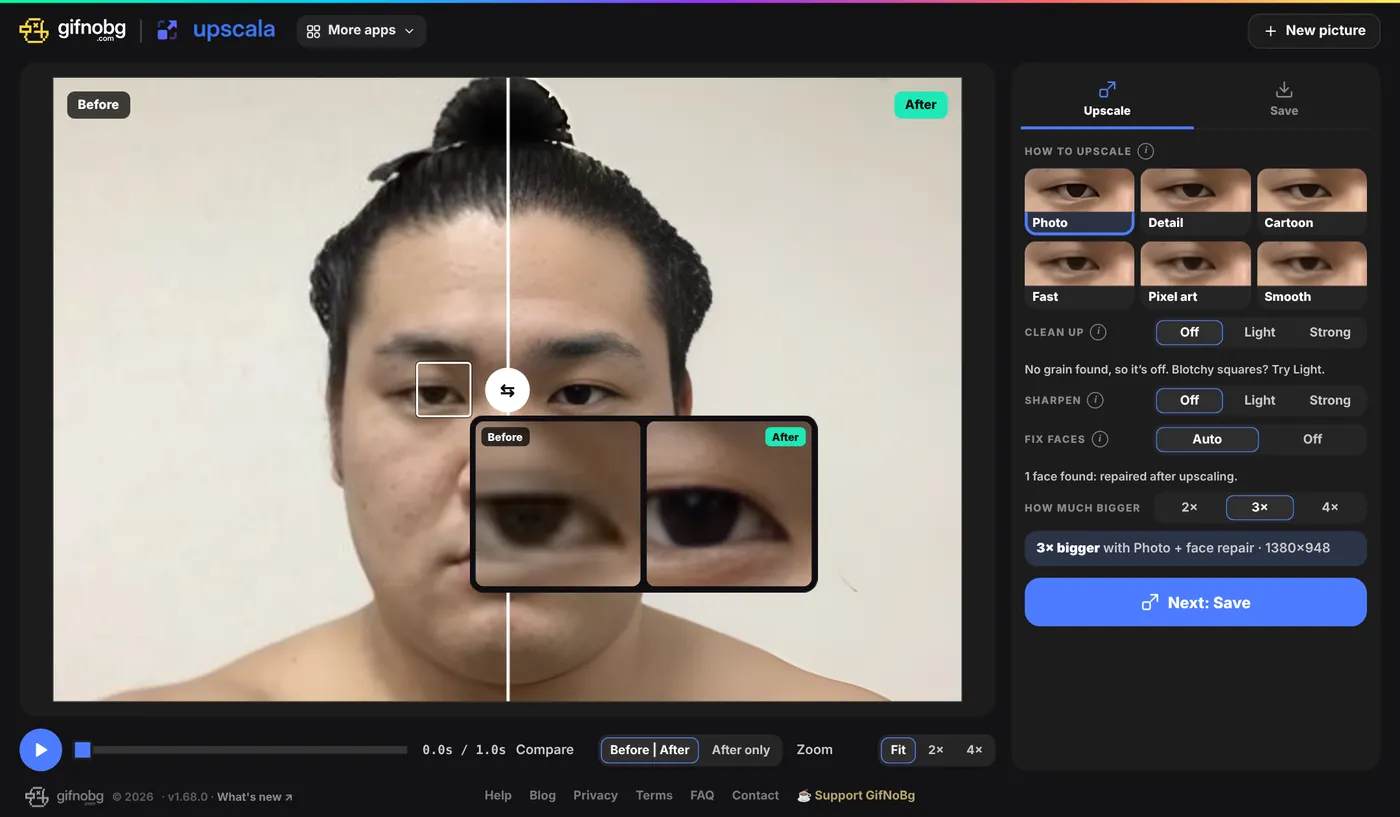
- Open gifnobg.com/upscala, or choose More apps next to the logo and pick Upscala under Utilities.
- Tap Choose pictures, a GIF or a video: a JPG, PNG, WebP or GIF, or a video such as an MP4, MOV or WebM. You can also drop it onto the page.
- Pick a way under How to upscale. Each tile shows the same close-up of an eye made bigger that way, so you can see how the ways differ before you start.
- Pick 2×, 3× or 4× under How much bigger. The new size shows under the buttons.
- Tap Upscale. The picture goes dark while it works and a bar shows how long is left. Tap Stop if you change your mind.
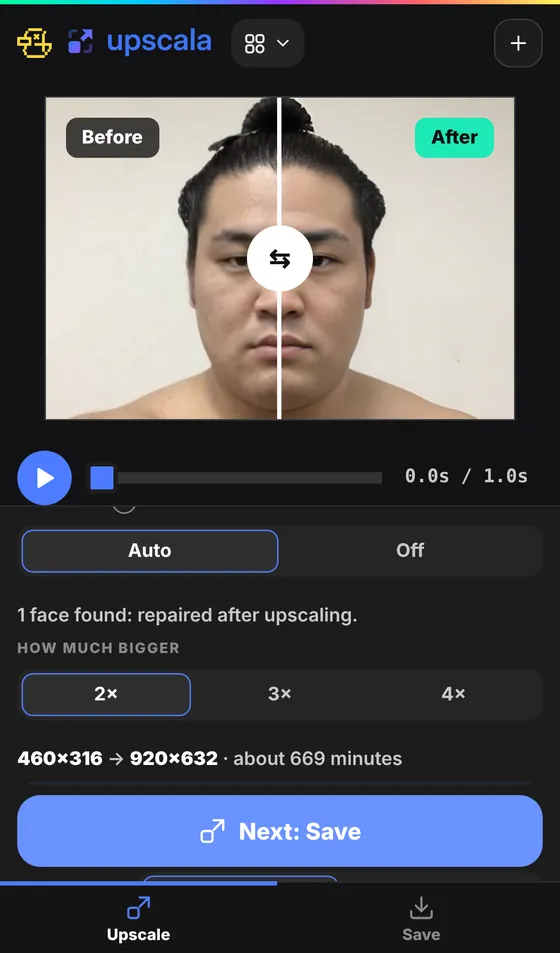
- Drag the line on the picture to compare Before and After, and use Zoom to look closer (on a computer, Compare and Zoom sit in the bar under the picture). Then go to Save.
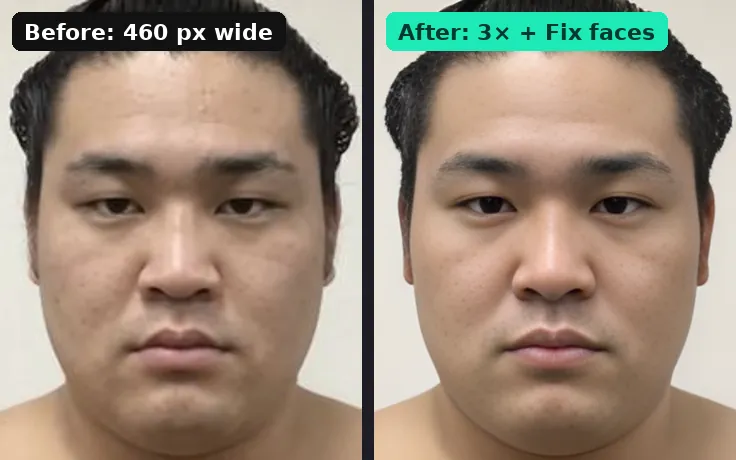
Which way to pick
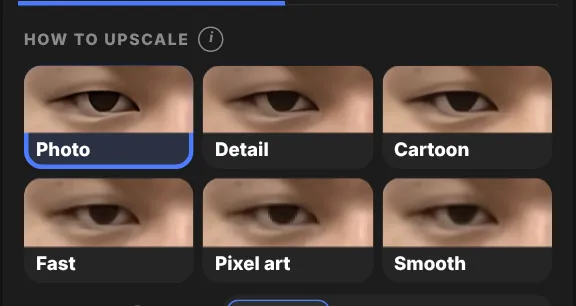
- Photo: a strong AI for photos of people, pets, places and things.
- Detail: an AI trained on blurry, grainy and blotchy photos. It rebuilds sharper edges, so it's the first choice for old, small or low-quality photos (Upscala picks it for grainy pictures). On a clean, sharp photo, Photo can look more natural.
- Cartoon: the best AI for drawings, anime, logos and stickers, with clean, sharp lines.
- Fast: a quicker AI. It's the first choice for GIFs and videos, because they have many frames.
- Pixel art: keeps hard square pixels, for pixel art and game sprites. No blur at all.
- Smooth: no AI, instant. A plain, gently sharpened enlargement.
If your browser can't run the AI (it needs WebGL 2), Upscala still offers Pixel art and Smooth, which work everywhere.
Grainy or blotchy pictures: Clean up
Old phone photos, screenshots of screenshots and small JPEGs often have grain or blotchy squares. Upscaled as they are, the AI makes those bigger too. Clean up removes them first:
- Off: nothing removed. Best for clean pictures and pixel art.
- Light: removes light grain and the blotchy squares you see in small, heavily saved JPEG pictures. Keeps fine texture like hair and fabric.
- Strong: for very grainy pictures, like photos taken in low light. Smoother, with less fine texture.
Upscala checks each picture when you open it and picks one for you (the note under the buttons says why). Change it any time, and compare before and after on your picture once it's made.
Clean up can't bring back what was never in the picture. A tiny, very blurry face becomes cleaner and smoother, not a sharp new photo.
Sharpen
Sharpen makes edges like eyes, lips and hair lines crisper after upscaling. Light is a gentle touch; Strong is clearer but can leave thin bright lines along edges. Upscala turns Light on by itself when Clean up is used, because cleaning softens a picture a little. Sharpening can't add detail that was never in the picture.
Texture
A blurry video frame comes out bigger and cleaner, but it can look smooth, almost like plastic. Texture lays fine photo grain and a little crispness on top, so it looks like a real photo again. Choose Medium or Strong; Off is the default. It works on pictures, GIFs and videos, keeps see-through parts as they are, and uses the same grain in every frame so GIFs don't flicker. It adds a look, not real detail.
Fix faces
Upscalers can sharpen a picture, but they can't work out what a blurry face should look like. Fix faces can: Upscala looks for faces as soon as you open a picture, and after upscaling it redraws each one sharp with a face AI (GFPGAN), then blends it back in. Blurry eyes, mouths and hair come out clear.
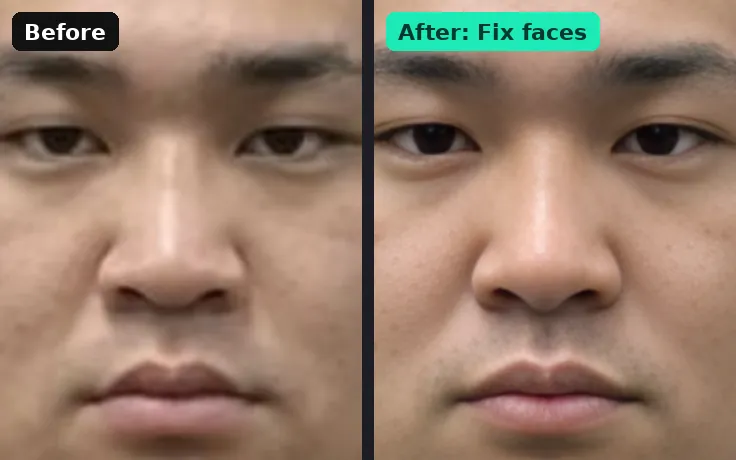
- Auto is on when a face is found (on a computer). On a phone it starts Off, because it needs a lot of memory; you can turn it on.
- The face AI downloads 85 MB the first time, then stays in your browser.
- It works on pictures, not GIFs or videos, and it can change small details of a face a little. Compare with Before | After.
Several pictures at once
- Pick or drop up to 30 pictures together (JPG, PNG or WebP). They show as a grid.
- Choose the way and the size in the panel: they're used for every picture. Clean up and Sharpen stay on Auto, which checks each picture on its own, unless you pick one.
- Tap Upscale all. Each picture shows its progress, and you can keep looking at the finished ones meanwhile.
- Tap a picture to compare its Before and After; All pictures takes you back to the grid.
- Choose PNG or JPG and tap Save all (ZIP) to download them in one file.
GIFs and videos are done one at a time. On a phone, very big pictures may be skipped as "Too big".
GIFs and videos
An animated GIF keeps its own timing: every frame is made bigger. For a video, a window lets you pick up to 15 seconds by dragging two handles under it. Long or large clips take a while, especially on a phone, so Fast and 2× are a good start.
Saving
- A picture saves as a PNG (best quality, keeps see-through parts) or a JPG (smaller).
- A GIF or video saves as a GIF, WebP, APNG or MP4. Sound isn't kept.
- See-through parts of a PNG, GIF or sticker stay see-through.
How big you can go depends on your device: a phone has less memory than a computer, so very large results may only offer 2× or 3×. Your pictures never leave your device and there's no watermark.