Turn a video into a GIF
Step by step: pick up to 30 seconds of an MP4, MOV or WebM video, choose the smoothness and size, then save a GIF, WebP, APNG or MP4. Free, no watermark, nothing uploaded.
Video to GIF turns part of a video into a GIF. Pick the moment, choose how smooth and how big, and save it as a GIF, WebP, APNG or MP4. It all runs in your browser on your own device, so your video is never uploaded.
Make a GIF from a video
- Open gifnobg.com/video-to-gif, or choose More apps next to the logo and pick Video to GIF under Utilities.
- Tap Choose a video: an MP4, MOV or WebM from your phone or computer. You can also drop it onto the page.
- Pick the part to use. Drag the two handles on the strip of frames to choose up to 30 seconds. The Start and End tags show the exact times.
- Choose Smoothness (10, 15, 20 or 30 frames per second) and Size (Small, Medium, Large or Full HD). Below them you see how many frames it makes and about how big the GIF will be.
- Tap Use this part.
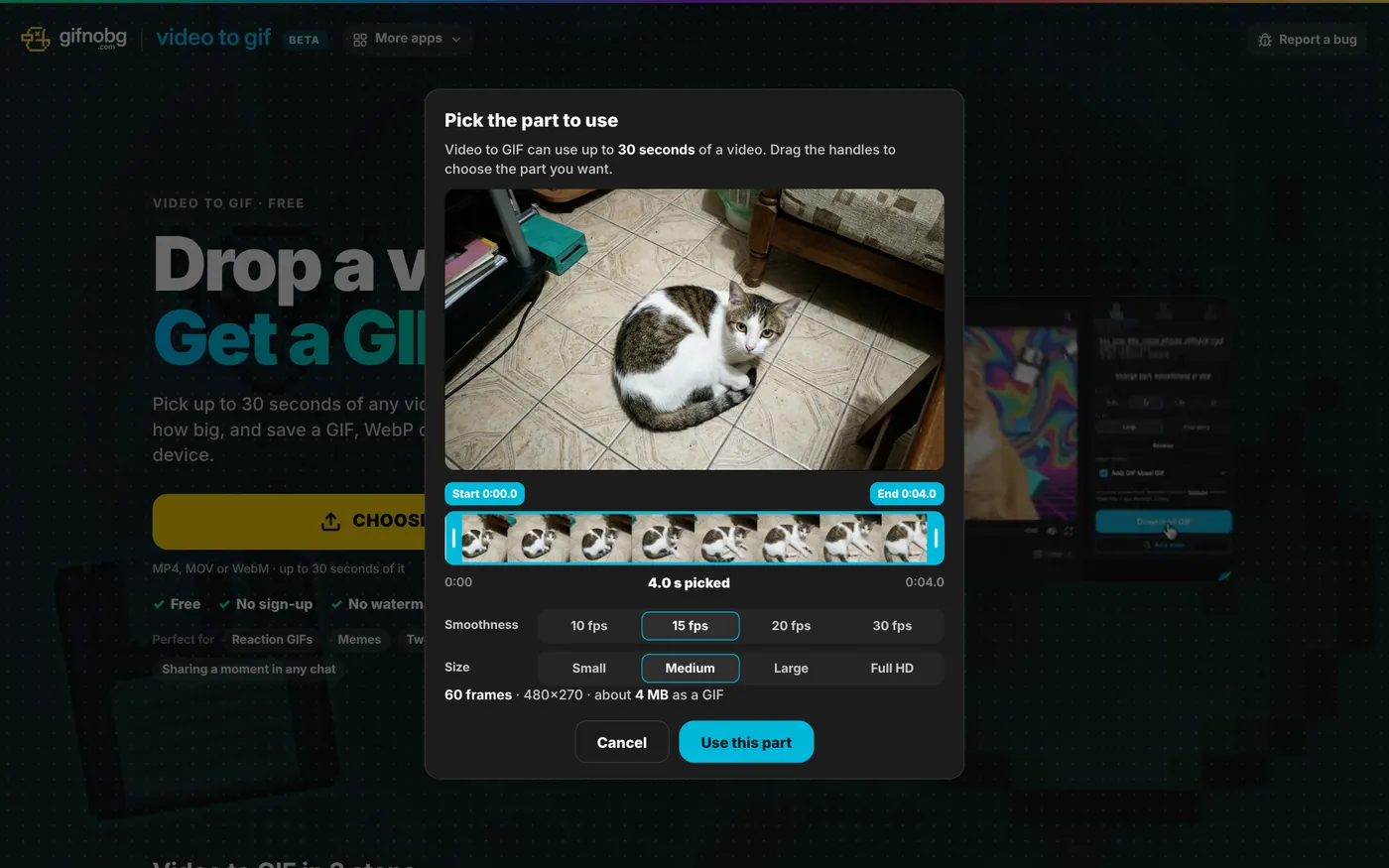
More frames per second and a bigger size look better but make a bigger file. For a chat or a meme, 15 fps and Medium are a good start.
Speed, loop and reverse
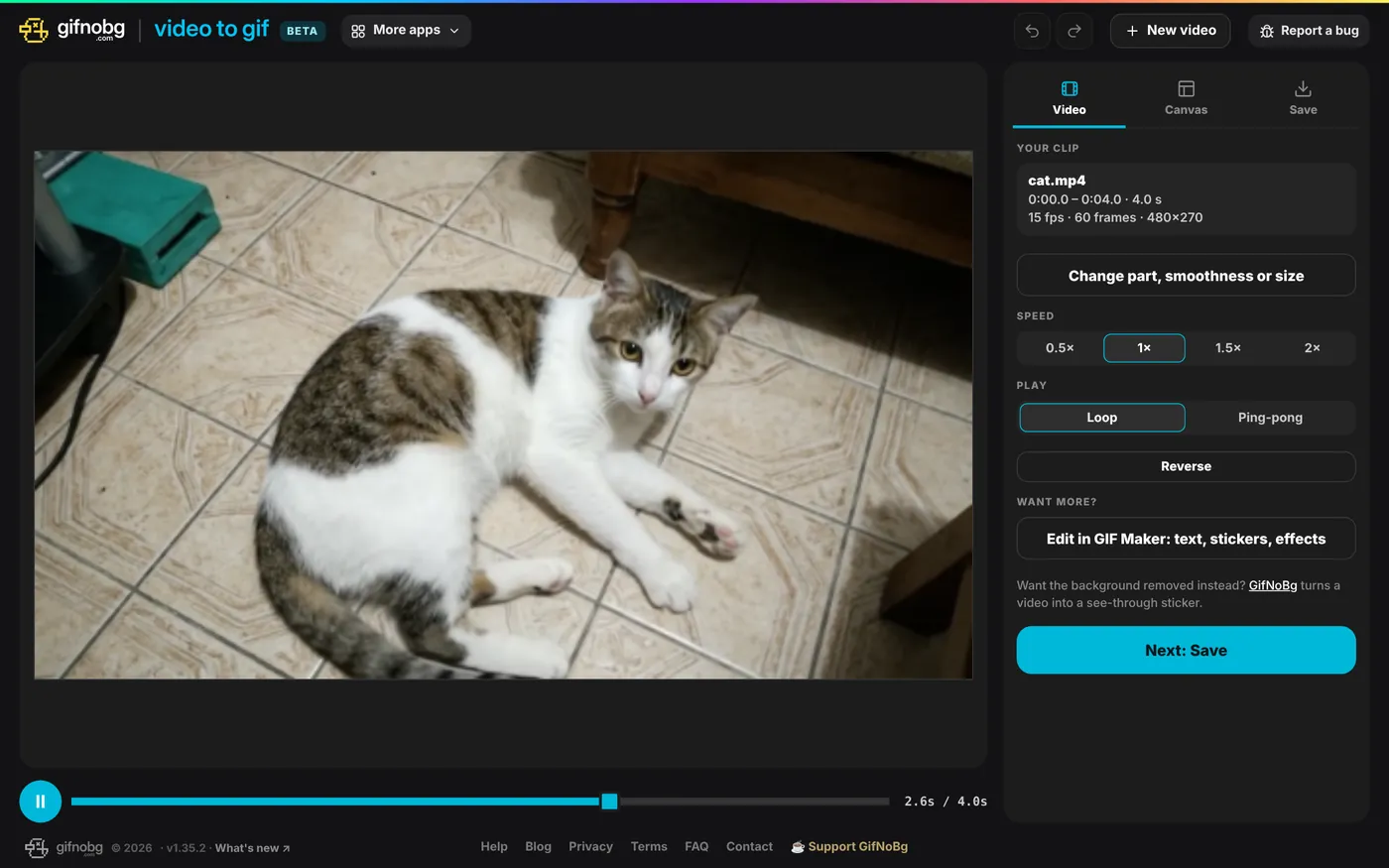
The Video tab shows your clip and lets you change it:
- Change part, smoothness or size opens the same window again.
- Speed: 0.5×, 1×, 1.5× or 2×.
- Play: Loop starts again from the beginning; Ping-pong plays forward, then back.
- Reverse plays it backwards.
- Edit in GIF Maker sends the frames to the GIF Maker for text, stickers and effects.
Crop and save
- In Canvas you can crop, change the shape (for example Story 9:16 for Instagram, TikTok or YouTube Shorts) and add a background.
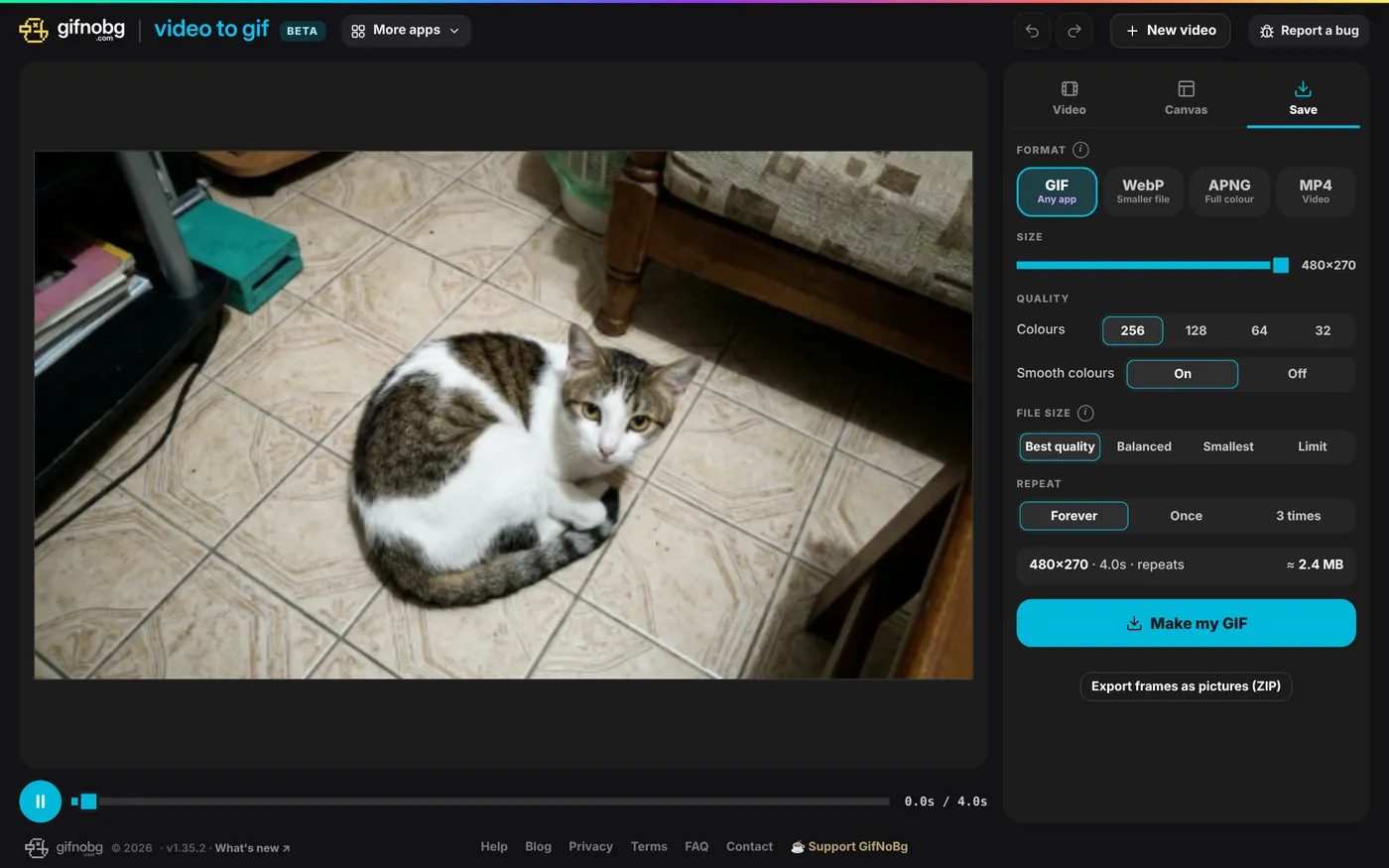
- Open Save and pick a format: GIF works in every app, WebP is smaller, MP4 is a video.
- Need a small file? Under File size choose Limit and a size, or Emoji for Discord, Slack or Twitch.
- Tap Make & download GIF; it downloads by itself.
Want the background of the video removed, so it becomes a see-through sticker? Use GifNoBg instead.

Turn your own video into a GIFFree, no sign-up, no watermark — and your video never leaves your device.
Open Video to GIF