Make your pictures wiggle
Paint on any photo to stretch, puff up, twist or melt it, then make it wobble and save a looping GIF, WebP, APNG or MP4. Free, no sign-up, nothing uploaded.
Wiggle is GifNoBg's fourth app. Choose one picture, paint on it to bend it, and it starts to move: bouncing, wobbling like jelly, or waving. Then save it as an animated GIF or a video.
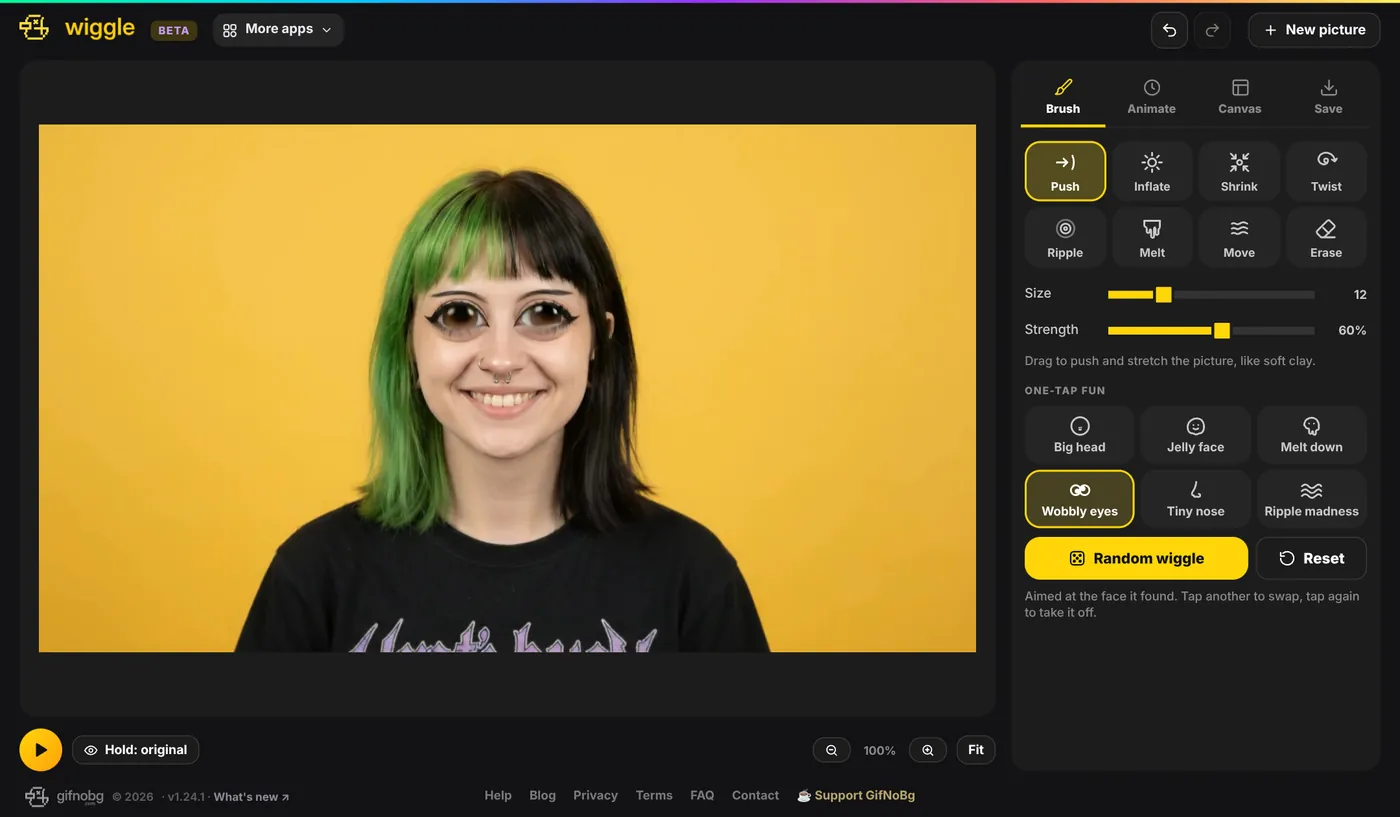
Make your first wiggle
- Open gifnobg.com/wiggle, or choose More apps next to the logo and pick Wiggle.
- Tap Choose a picture (JPG, PNG, WebP, AVIF or HEIC). You can also drop it onto the page or paste it.
- Tap one of the One-tap fun buttons, or paint on the picture with a brush. It starts moving straight away.
- Go to Save, pick a format and tap Make & download GIF (or MP4). It downloads by itself.
Photos with one clear face, looking at the camera, work best for One-tap fun. Brushes work on anything: pets, food, cars, drawings.
One-tap fun
Wiggle finds the face in your picture (eyes, nose and mouth) on your device, so these land in the right place:
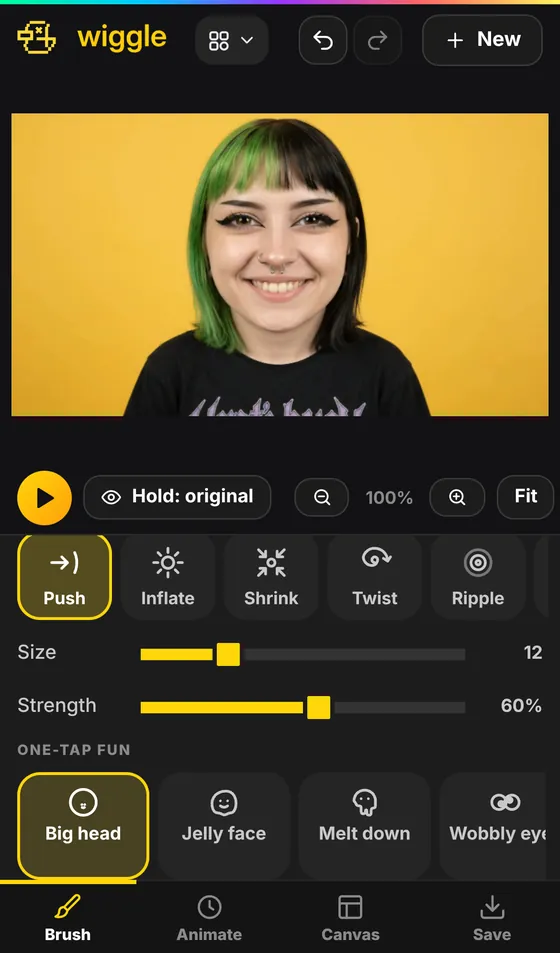
- Big head: the whole head grows.
- Jelly face: the face puffs up and wobbles.
- Melt down: the face droops and runs down in drips.
- Wobbly eyes: big wobbling eyes.
- Tiny nose: shrinks the nose.
- Ripple madness: rings of waves all over the picture.
One tap is one effect: tap another to swap it, or tap the same one again to take it off. Random wiggle mixes a few for you (tap again for another), and Reset goes back to the original picture. If no face is found, the effects aim at the upper middle of the picture.
The brushes
- Push: drag to push and stretch the picture, like soft clay.
- Inflate and Shrink: press or brush to make a part bigger or smaller.
- Twist: swirls the picture around the brush, clockwise or anticlockwise.
- Ripple: makes rings of waves.
- Melt: brush downwards to make it droop and drip.
- Move: paints motion instead of a bend. Drag the way hair, water or clothes should sway; it only moves while playing.
- Erase: brush over a bend or motion to calm it back down.
Size and Strength set the brush. The circle on the picture shows how big it is. Inflate, Shrink, Twist, Ripple and Melt keep working while you hold still, like a real brush.
Handy extras
- Hold: original: press and hold to see the picture before your changes.
- Undo and redo: the arrows at the top, or Ctrl+Z, Shift+Ctrl+Z and Ctrl+Y (⌘ on a Mac).
- Zoom: the + and − buttons, the mouse wheel, or two fingers on a phone. Zoomed in, the brush paints finer. Fit shows the whole picture again.
- On a computer, hold Space and drag to move around, and use [ and ] to change the brush size.
- On a phone, one finger paints and two fingers zoom and move.
Next: pick how it moves and set the canvas, then save it as a GIF or video.