Swap parts, cut out and use your face
Put your own GIF, picture or short video on any body part of a Puppet, remove its background, cut it out by drawing around it, cut your face out of a photo for the head, crop and turn a part, drag it into place, draw your own parts, mirror and layer them. Free, nothing uploaded.
Any part of a Puppet can be a sticker, your own GIF, a picture or a short video. Here's how to make it fit.
Use your own picture or GIF
- In Parts, pick the part (or tap it on the puppet).
- Tap Upload GIF, picture or video, or drop a file onto a part. Animated GIFs, WebPs and short videos keep moving while the puppet dances.
- For arms and legs, choose Both, Left or Right. Both sides are mirrored for you, so a left and a right arm match.
A GIF or picture with a see-through background fits best. Make one from any video or photo with GifNoBg.
Remove the background or cut it out
Pictures with a background open the Cut out window by themselves. You can also tap Cut out under the part at any time.
- Remove background finds the person or thing in the picture and takes away everything behind it. It works on every frame of a GIF or video too, and runs on your own device.
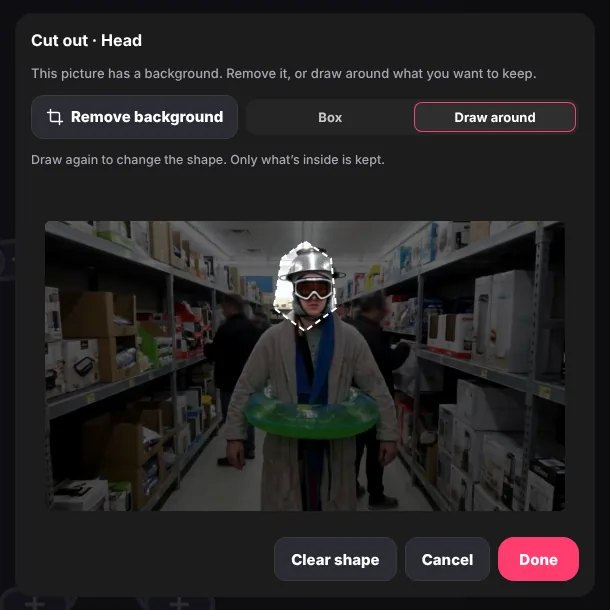
- Draw around: draw a shape around what you want to keep, with your mouse or finger. Only what's inside is kept, so you can pick one object out of a busy picture. Draw again to change the shape; Clear shape takes it off.
- Box: drag the corners to crop, and use the round handle on top to turn the box so it lines up with the part.
You can mix them: remove the background, then draw around just the head, for example. Opening Cut out again starts from your whole picture with the same settings, so nothing is lost, and Undo works too. Whole picture takes everything off. Uploaded pictures keep their detail when cut.
Put your face on the head
Pick Head and tap Cut out a face from a photo. Puppet finds the face, cuts it out round the jaw and puts it on the head. It all happens on your device.
Move, resize and turn a part
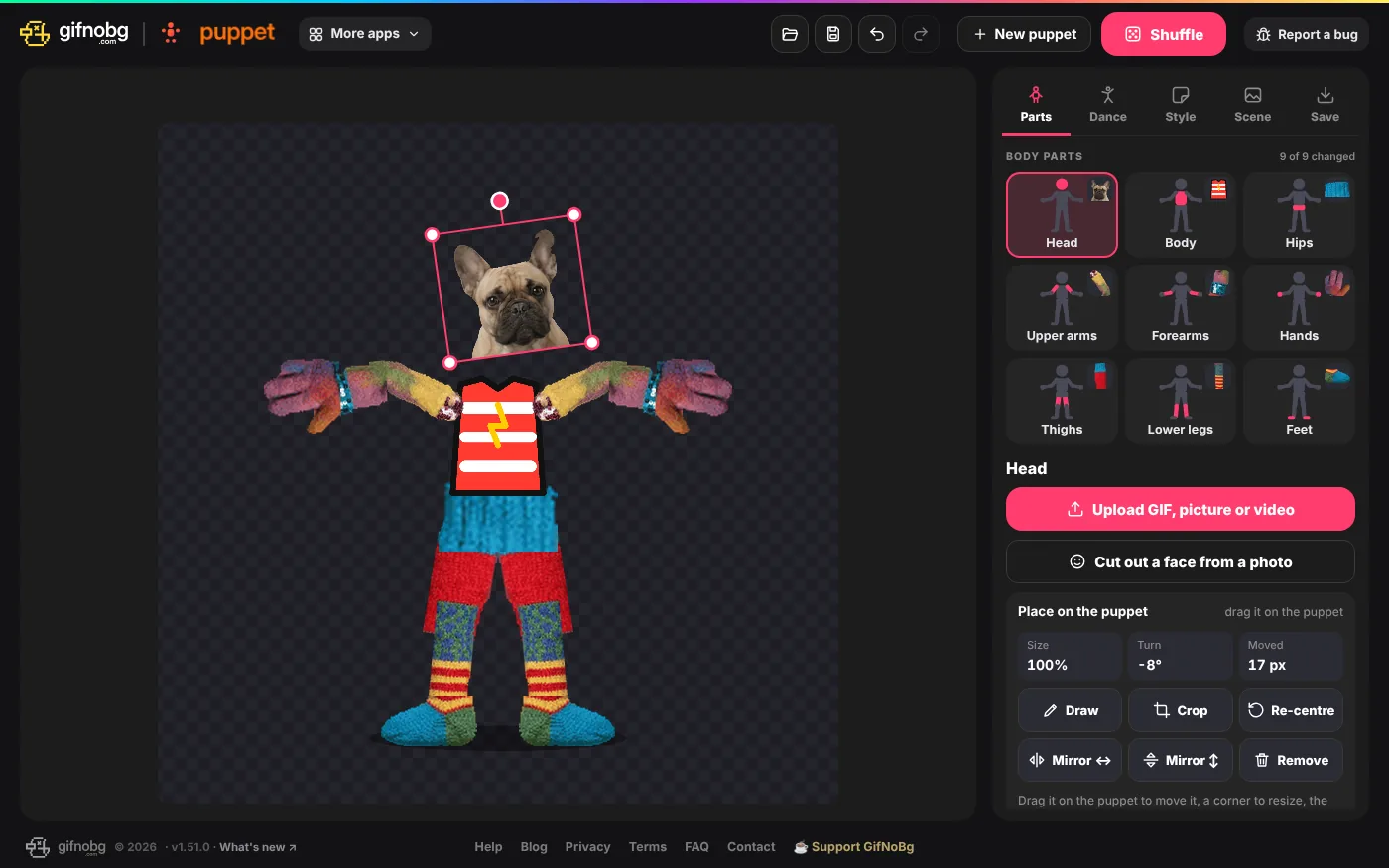
When you pick a part, a box appears round it on the puppet. Drag inside the box to move the part, drag a corner to make it bigger or smaller, and drag the round handle on top to turn it. On a computer, the arrow keys nudge it 1 pixel (10 with Shift). The part stays where you put it in every dance, and for arms and legs both sides move together, mirrored. Re-centre puts it back.
Draw a part yourself
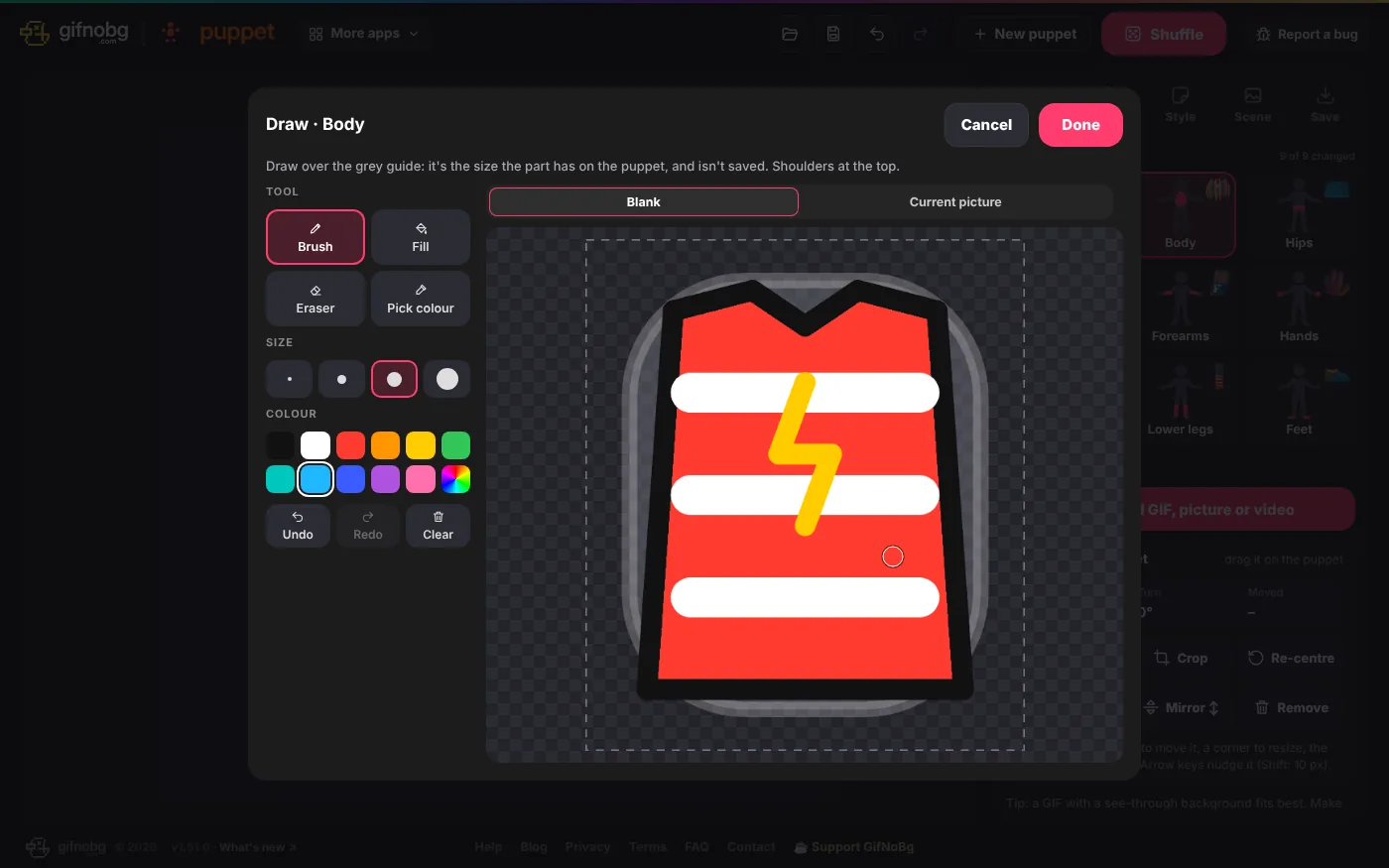
Tap Draw under the part. You get a brush, a fill bucket, an eraser, a colour picker, four brush sizes and a row of colours (plus any colour you like). The faint grey shape is a guide that shows the size the part has on the puppet; it isn't saved. Start from a blank page or from the part's current picture, then tap Done. Your drawing is saved with your project and Shuffle leaves it alone.
Smooth knees and elbows
With your own pictures on the arms and legs, Blend joints (in the Parts tab, under the body parts, on by default) bends the thigh and lower leg, and the upper arm and forearm, along one smooth curve, so a bent knee or elbow looks like one limb instead of two pieces with a notch. Arms also blend into the shoulders. Turn it off for the classic cut-out look. It also works on parts you resized, moved or turned a little; a part turned a long way keeps its own angle.
Mirror and layers
- Mirror ↔ and Mirror ↕ flip a part.
- Layer: In front or Behind the body, for arms and legs.
- Use on all arms and legs puts one sticker on every limb at once.
- Remove puts a part back to its plain shape. Shape colour changes the colour of the plain shapes.