Make a YouTube Short from a GIF or pictures
Step by step: turn a GIF, pictures or a short clip into a vertical YouTube Short (1080×1920 MP4). YouTube doesn't take GIFs, so save it as a video first. Free, nothing uploaded.
A YouTube Short is a vertical video: 9:16, best at 1080 × 1920 pixels, up to 3 minutes long. YouTube doesn't upload GIFs, so save your animation as an MP4 first.
Make the Short
- Open the GIF Maker and choose your pictures or GIF. (Got a video? Use Video to GIF or Effecto: they have the same Canvas and Save.)
- In Canvas, choose Story 9:16. Under Pictures, Fit shows all of each picture and Fill covers the whole screen.
- Under Background, pick a Colour or a Gradient. A video can't be see-through, so empty parts would turn black.
- Add text, stickers or effects if you like.
- Open Save, choose MP4 and 1080p. It shows 1080×1920, the size YouTube recommends.
- Press Make & download MP4; it downloads by itself.
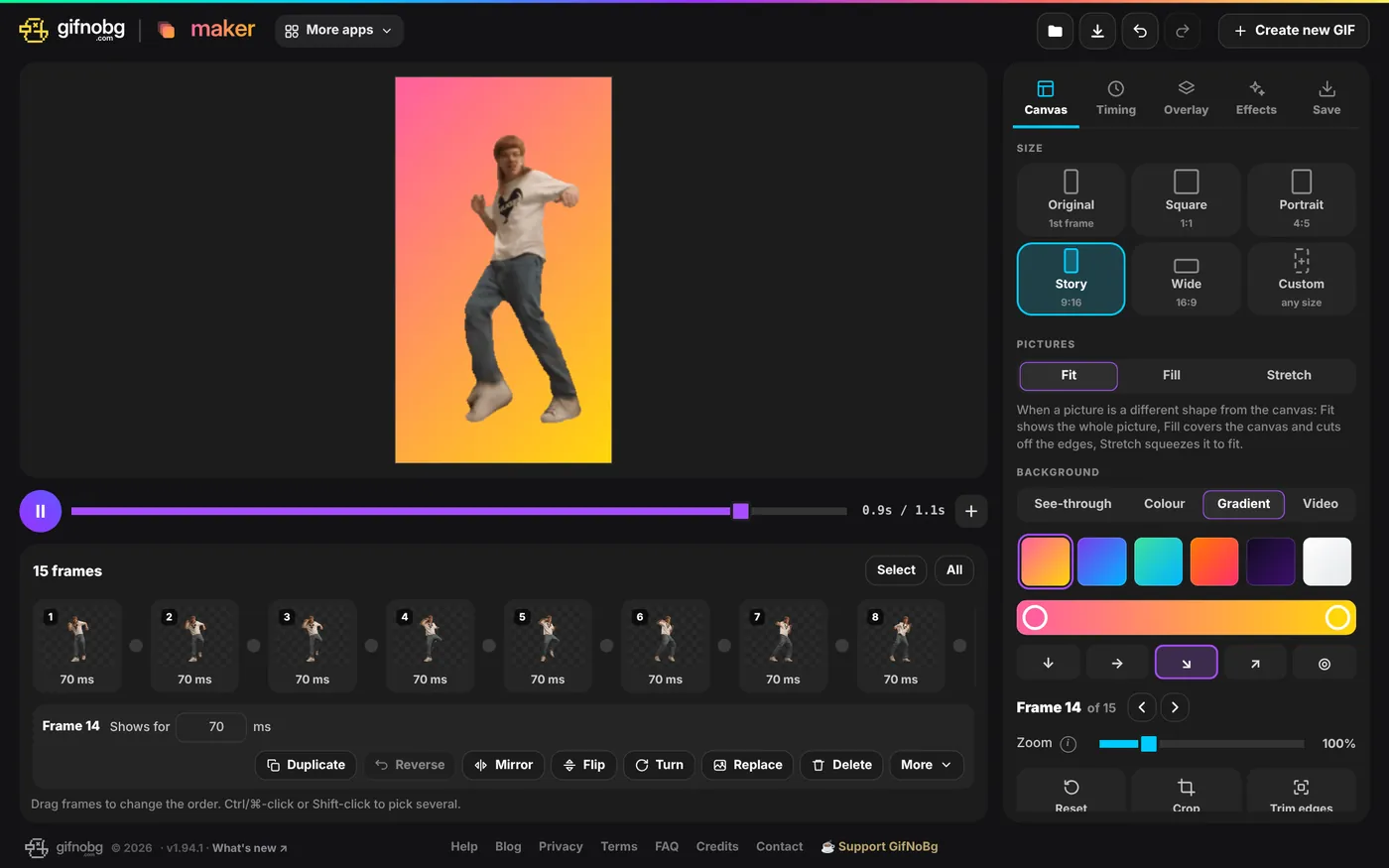
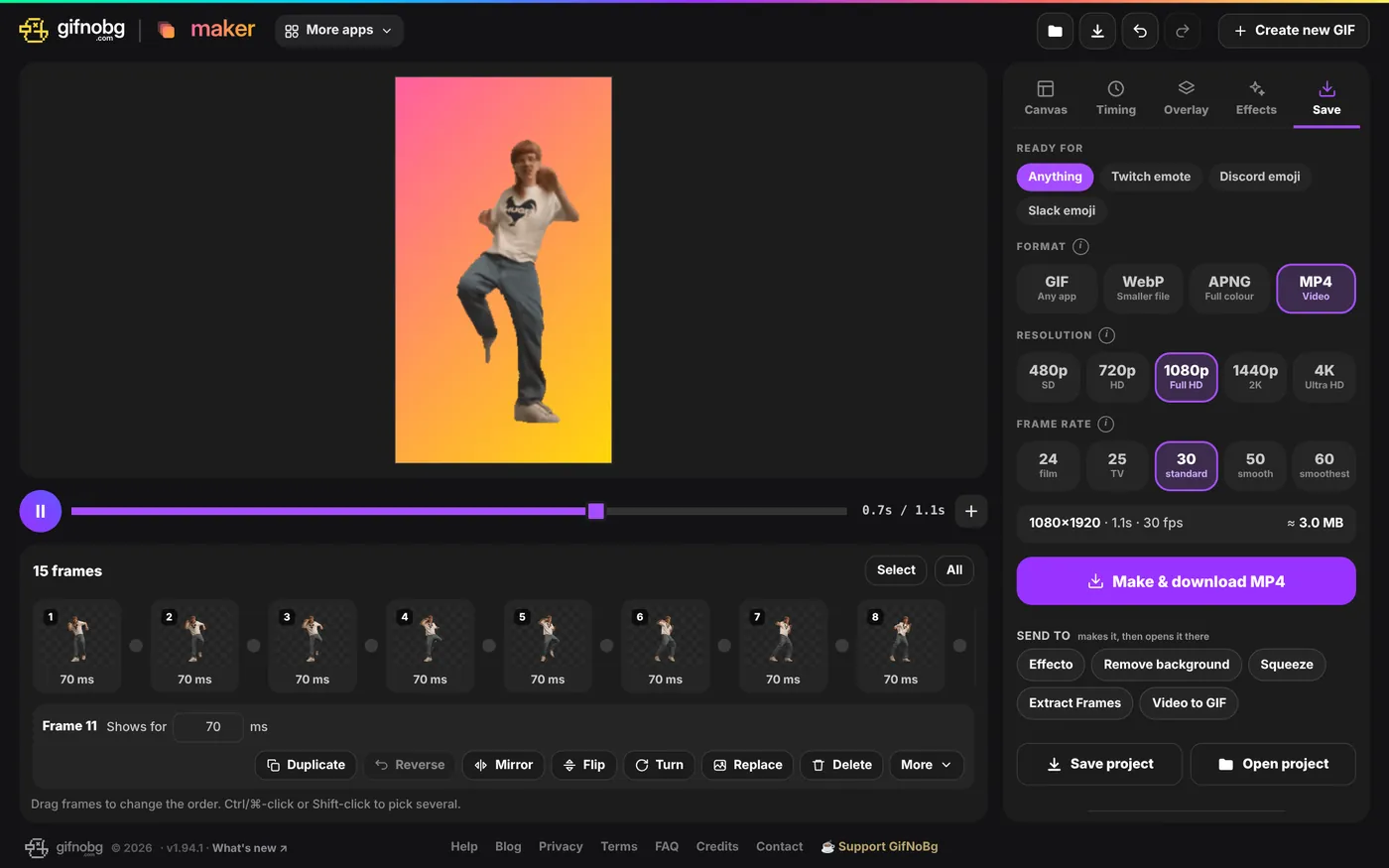
Starting from a person or pet in a video? Remove the background at gifnobg.com first, save it with Just a GIF, then open that GIF in the GIF Maker and follow the steps above to put it on a coloured background.
Upload it
- On a phone: in the YouTube app tap + → Short, then choose the video from your gallery.
- On a computer: in YouTube Studio choose Create → Upload videos. A vertical (or square) video of 3 minutes or less becomes a Short.
- Add a title (adding #Shorts helps people find it), then publish.
Shorts replay automatically, so a seamless loop looks great. Very short animations become a very short Short: duplicate frames or slow it down under Timing if you want it to last longer.
YouTube changes its limits and menus from time to time. These steps match YouTube in 2026.